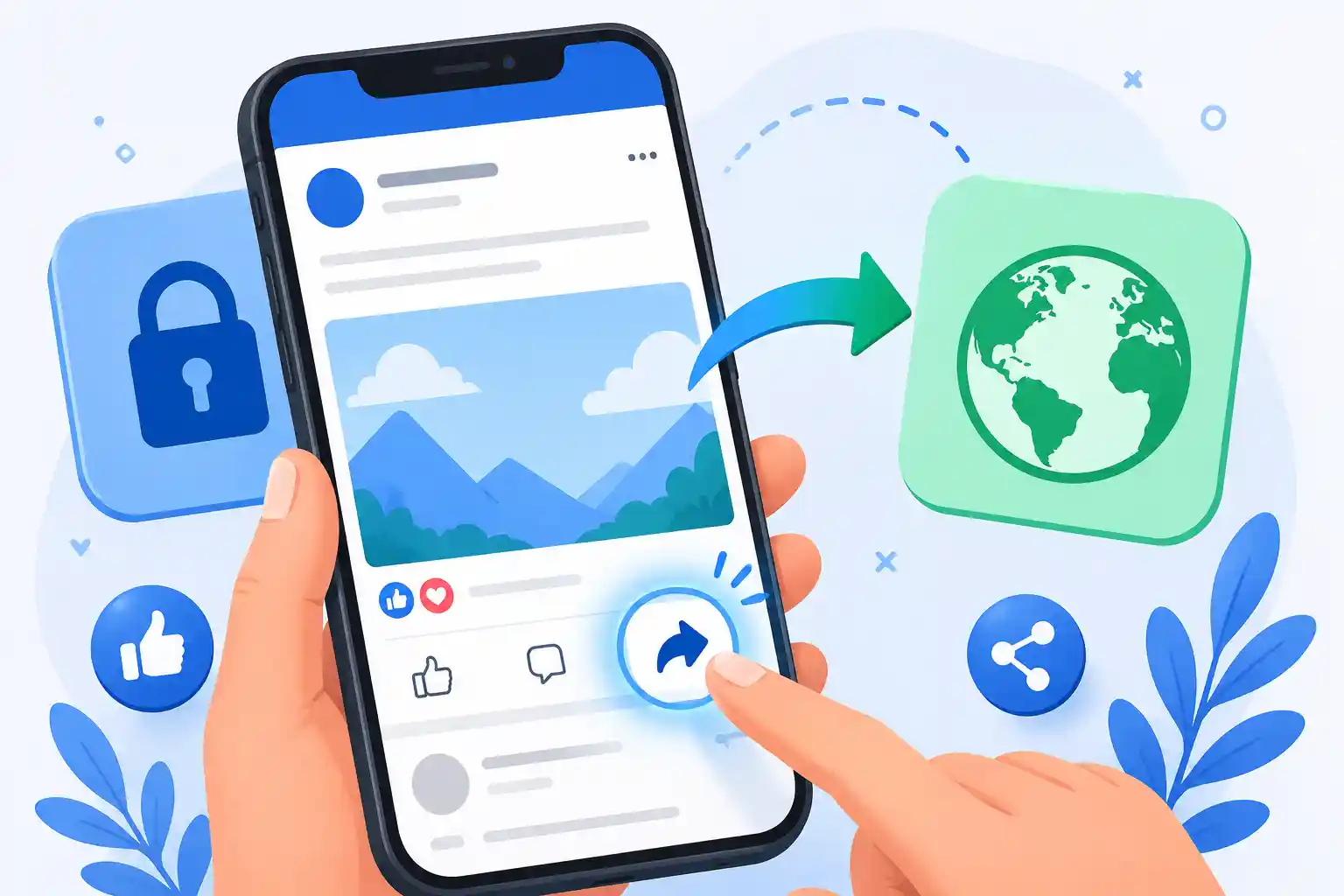
Quick answer: To make a Facebook post shareable, open the post, tap the three dots (⋯) or the audience label at the top, select Edit Audience or Edit Privacy, and choose Public. Posts set to "Friends," "Only Me," or a custom audience won't show a Share button to people outside that group.
Table of Contents
.webp)
1. Why Can't People Share My Facebook Post?
The most common reason people can't share your post is your chosen audience. Facebook only shows the Share button to people who are included in that post's audience. If you posted to "Friends" and a stranger views your profile, they simply won't see a Share option — because they were never meant to see the post at all.
Other common causes include:
- The post was set to Only Me.
- The post is inside a closed or private Facebook Group, where sharing outside the group is restricted by the admin.
- The post came from someone else's profile and their settings don't allow re-sharing.
- You're using an outdated version of the Facebook app.
- The post type (like some Marketplace listings or certain ads) doesn't support sharing.Once you understand that sharing is tied directly to audience visibility, fixing it becomes simple.
Example: Say you posted a photo and set the audience to "Friends." Your friend loves it and wants to share it with their own followers. But when someone who isn't your friend, like a coworker or a follower of a Page you manage, opens that same post, they won't see a Share icon at all, because they were never part of the intended audience. Changing the post to Public solves this instantly.
2. How to Make a Facebook Post Shareable
Here's the general process to make a Facebook post shareable, no matter what device you're using:
- Open the post on your profile or Page.
- Tap the audience icon (globe, friends icon, or lock) next to your name, or tap the three dots (⋯) menu.
- Select Edit Audience or Edit Privacy.
- Choose Public so anyone can view and share the post.
- Save your changes.
Once the post's audience is set to Public, the Share button becomes visible to everyone, including people who aren't your Facebook friends.
3. How to Make a Facebook Post Shareable on Android
- Open the Facebook app and go to your profile.
- Find the post you want to make shareable.
- Tap the three dots (⋯) in the top-right corner of the post.
- Tap Edit Audience.
- Select Public from the list of audience options.
- Tap Done or Save to confirm.
The Share icon will now appear below the post for anyone who views it.
4. How to Make a Facebook Post Shareable on iPhone
- Open the Facebook app and go to your profile page.
- Locate the post you'd like to update.
- Tap the three dots (⋯) at the top-right of the post.
- Choose Edit Privacy.
- Select Public as the new audience.
- Tap Save or Done to apply the change.
Your post is now visible to everyone, and the Share option will appear for all viewers.
.webp)
5. How to Make a Facebook Post Shareable on Desktop
- Log in to Facebook at facebook.com.
- Go to your profile and find the post.
- Click the three dots (⋯) in the top-right corner of the post.
- Select Edit Privacy from the dropdown menu.
- Choose Public from the audience selector.
- Click Close or Save Changes.
Refresh the page if the Share button doesn't appear immediately.
Note: Facebook regularly updates its design, so menu names and icon placement may look slightly different depending on your device, app version, or account type. The overall steps, however, stay the same.
6. How to Make an Existing Facebook Post Shareable
You don't need to delete and repost content to fix its sharing settings. Facebook lets you edit the audience of posts you've already published:
- Open the old post from your profile or activity log.
- Tap or click the audience icon or the three dots (⋯) menu.
- Choose Edit Audience or Edit Privacy.
- Set the audience to Public.
- Save the update.
This works for text posts, photos, videos, and most link posts. It won't work for posts made by someone else on your timeline — only the original poster can change that post's audience.
This is especially useful for older content that performed well but was originally posted with a limited audience. For example, if a photo you shared with "Friends" a year ago is still getting comments and reactions, switching it to Public lets new visitors share it too, without you having to repost it from scratch and lose the existing likes and comments.
7. How to Make Future Facebook Posts Shareable
If you want every new post to be shareable by default, change your default audience setting once instead of adjusting each post individually:
- Go to Settings & Privacy > Settings.
- Select Audience and Visibility, then Posts.
- Find Who can see your future posts?
- Change it to Public.
From now on, the Facebook audience selector will default to Public each time you create a new post, though you can still switch individual posts to a more private setting whenever needed.
8. Why Is My Facebook Post Still Not Shareable?
If you've already set the audience to Public and the Share button is still missing, check these possibilities:
- Group posts: Some Facebook Groups disable sharing outside the group entirely, even for public groups. This is controlled by the group admin, not your personal settings.
- Page posts vs. profile posts: Posts from a Facebook Page are usually shareable by default since Pages are public. If a Page post can't be shared, the Page admin may have restricted it in Page settings.
- Someone else's post: You can only edit sharing settings on content you posted yourself.
- Outdated app: Update the Facebook app from the App Store or Google Play, as older versions sometimes display menus differently.
- Content restrictions: Some content types, like certain Marketplace listings, event invites, or sponsored posts, don't include a Share function by design.
If you've checked all of the above and the Share option is still missing, try these extra troubleshooting steps:
- Log out of Facebook and log back in to refresh your session.
- Clear the Facebook app's cache (Android: Settings > Apps > Facebook > Storage > Clear Cache).
- Try viewing the post from a different device or through a browser to see if the issue is app-specific.
- Ask a friend outside your friend list to check if they can see the post and Share button, which helps confirm whether the issue is really about audience settings.
9. Facebook Privacy Settings and Sharing
Understanding the difference between profiles, Pages, and Groups helps explain why sharing behaves differently across Facebook:
- Personal Profiles: Sharing depends entirely on the post's audience setting (Public, Friends, Only Me, or Custom). This is where the Facebook audience selector matters most.
- Facebook Pages: Posts are public by default because Pages represent businesses, brands, or public figures. Sharing is almost always enabled unless the admin disables it.
- Facebook Groups: Sharing depends on the group's own settings. Admins of private or closed groups can turn off the ability for members to share posts outside the group, regardless of individual privacy settings.
.webp)
In short, your Facebook post settings control visibility on your own profile, but Group and Page rules can override individual sharing options.
It also helps to know that Facebook offers several audience levels beyond just Public and Friends, including "Friends except..." and "Specific friends." These narrower options are useful for personal updates, but keep in mind that anything short of Public will limit who can use the Share button, since sharing always mirrors the original post's visibility.
10. Facebook Post Shareability FAQs
How do I make my Facebook post shareable?
Open the post, tap the three dots (⋯) or audience icon, choose Edit Audience, and set it to Public.
Why can't people share my Facebook post?
Usually because the post's audience is set to Friends, Only Me, or a custom list that excludes them, so no Share button appears.
How do I make a Facebook post shareable after posting?
Open the existing post, select Edit Privacy or Edit Audience from the three-dot menu, and change it to Public.
How do I make my Facebook post shareable to everyone?
Set the post's audience to Public. This removes all viewing restrictions and enables sharing for anyone, including non-friends. Public is the widest possible audience option Facebook offers for personal profile posts.
Why don't I see the Share button on my Facebook post?
You may not be part of the post's audience, the app may need updating, or the post type (like certain ads or Marketplace listings) may not support sharing.
Can I change a Facebook post from Friends to Public?
Yes. Open the post, go to Edit Audience or Edit Privacy, and select Public instead of Friends.
Can Facebook Group posts be shared?
Only if the group admin allows it. Many private and closed groups disable sharing outside the group to protect member privacy. Public groups are more likely to allow it, but it's always the admin's call, not an individual member's setting.
Can I make all my future Facebook posts shareable?
Yes. Go to Settings & Privacy > Settings > Audience and Visibility > Posts, and set "Who can see your future posts?" to Public.
11. Conclusion
Learning how to make a Facebook post shareable really comes down to one thing: your audience setting. Switch a post to Public, whether it's brand new or something you posted months ago, and the Share button will appear for everyone. If sharing still isn't working, double-check whether the post lives inside a restricted Group, confirm you're using an updated app, and remember that only the original poster can change a post's privacy.
With these steps, you can control exactly who sees and shares your content, on Android, iPhone, or desktop, every time.
Looking for more social media tips, or need to resize and optimize images before posting them to Facebook? Check out FreelyConvert.com's free image conversion and compression tools to get your photos ready for sharing in seconds.