If you've spent any time downloading logos, icons, or web graphics, you've probably come across a file ending in .svg. Unlike the JPG or PNG files most people are used to, an SVG file behaves a little differently — and understanding why can save you a lot of frustration, especially if you work with websites, design tools, or cutting machines.
This guide breaks down exactly what an SVG file is, how it works, and why it has become one of the most popular image formats on the web today. Whether you're a designer, a small business owner, or just someone trying to open a mysterious new file type, you'll find plain-language answers here.
Table of Contents
What Is an SVG File?
An SVG file — short for Scalable Vector Graphics — is an image format that stores pictures as mathematical instructions instead of a fixed grid of pixels.
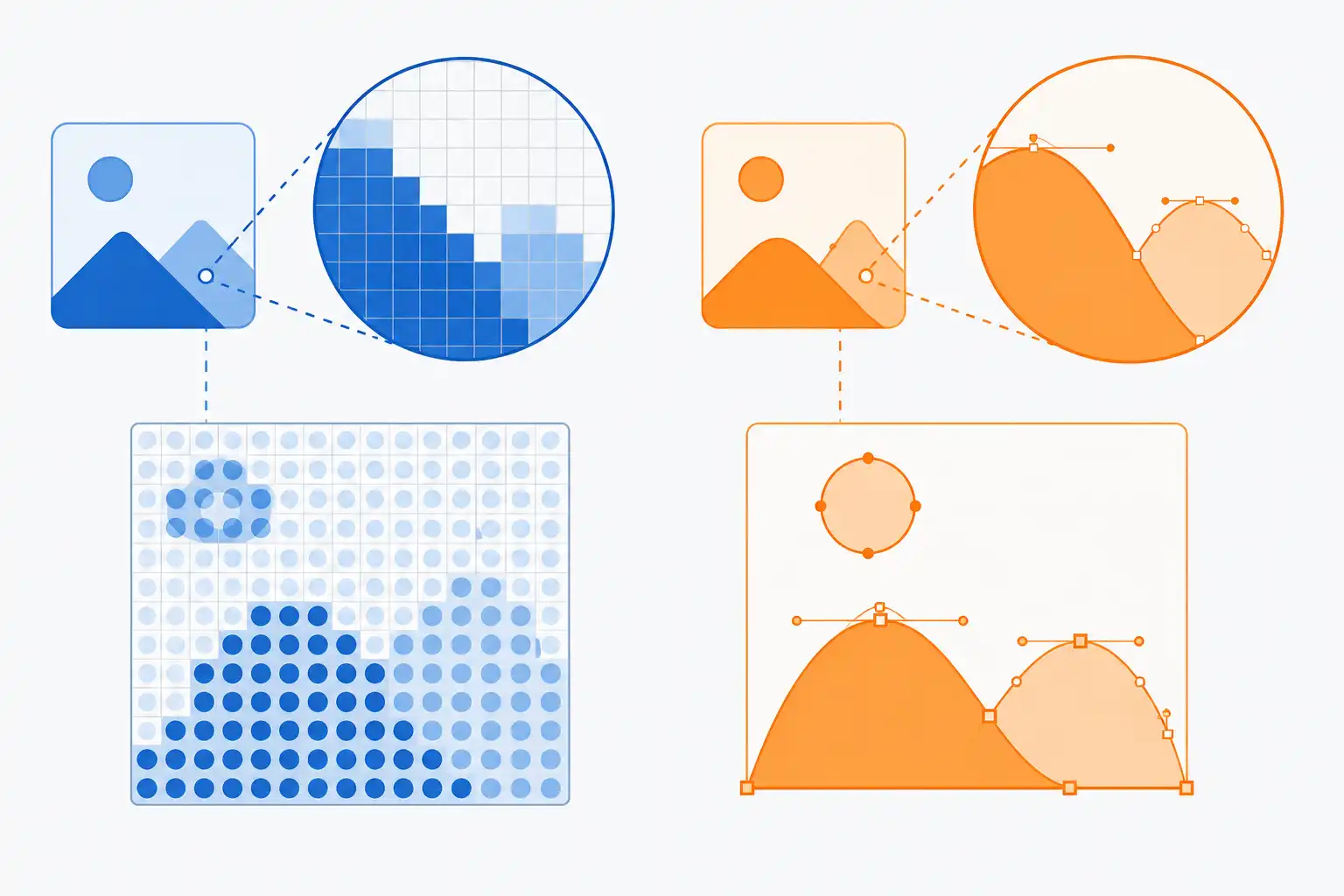
That single difference is what makes SVG so useful. When you open an SVG image, your device isn't loading a static snapshot; it's reading a set of directions that describe shapes, lines, curves, and colors. Those instructions get redrawn every time the image is displayed, which means the image can be stretched to any size — from a tiny favicon to a massive billboard — without becoming blurry or pixelated.
Because SVG files are also text-based (built on a markup language similar to HTML), they're lightweight, easy to edit, and compatible with nearly every modern web browser and design application.
How Does an SVG File Work?
To understand how an SVG image works, it helps to compare it with a traditional raster image like a JPG or PNG.
A raster image is made of a fixed grid of colored dots called pixels. Zoom in far enough, and you'll eventually see those individual squares — that's why raster images lose sharpness when enlarged.
An SVG file works completely differently. Instead of pixels, it uses:
- Paths – lines and curves defined by mathematical coordinates
- Shapes – basic elements like circles, rectangles, and polygons
- Fills and strokes – the colors and outlines applied to shapes
- A viewBox – a coordinate system that tells the browser how to scale the image proportionally
Because SVG is written in XML (Extensible Markup Language), the file itself is just readable text. You can actually open an SVG file in a plain text editor and see its structure.
Here's a simplified example of what SVG code looks like:
<svg viewBox="0 0 100 100" xmlns="http://www.w3.org/2000/svg">
<circle cx="50" cy="50" r="40" fill="#4A90E2" stroke="#003366" stroke-width="3" />
</svg>
This short snippet draws a blue circle with a dark blue outline. No matter how large or small this SVG is displayed, the circle will always look crisp, because the browser recalculates the shape using the coordinates rather than stretching a fixed set of pixels.
SVG vs PNG: What Is the Difference?
One of the most common questions beginners ask is how an SVG image compares to a PNG. Both are widely used online, but they serve different purposes.
|
|
|
|
|
|
|
|
|
|
|
|
|
|
|
|
|
|
|
|
|
|
|
|
|
|
|
|
|
|
|
|
In short: PNG is better for complex, photo-like images, while SVG excels at clean, scalable graphics like logos and icons.
Advantages of SVG Files
SVG files offer several practical benefits, especially for web and design work:
- Infinite scalability — SVG images look sharp on any screen size, from mobile phones to large monitors, without needing multiple image versions.
- Small file sizes — For simple graphics, SVG files are often much lighter than their raster equivalents, which helps page loading speed.
- Editable with code or software — Because SVG is text-based, developers can tweak colors, shapes, and sizes directly in the code.
- CSS and JavaScript friendly — SVG elements can be styled and animated using standard web technologies.
- Crisp on all screens — SVGs look equally sharp on standard and high-resolution (retina) displays.
- Search-engine friendly — Because SVG text can be indexed, it can contribute positively to accessibility and SEO when used correctly.
Disadvantages of SVG Files
SVG isn't perfect for every situation. It's worth understanding its limitations too:
- Not suitable for photographs — SVG is designed for shapes and paths, not the complex color detail found in photos.
- Can become complex — Highly detailed illustrations can result in large, complicated SVG code that's harder to manage.
- Browser rendering differences — While support is strong, some older browsers or specific SVG features may render inconsistently.
- Security considerations — Because SVG can contain embedded code, it requires more caution than static image formats (more on this later).
- Steeper learning curve — Editing SVG code directly requires some technical understanding, unlike simply opening a JPG.
Where Are SVG Files Used?
SVG has become a go-to format across many industries and use cases, including:
- Logos — Brand logos need to look sharp at any size, from a tiny favicon to a large printed banner.
- Icons — Website and app icons are almost always SVG for crisp rendering at small sizes.
- Websites — Backgrounds, dividers, and decorative graphics often use SVG for performance and flexibility.
- UI elements — Buttons, navigation graphics, and interface components frequently rely on SVG.
- Illustrations — Flat-design artwork and vector illustrations are commonly created and distributed as SVG.
- Charts and graphs — Data visualizations often use SVG so they remain sharp and interactive.
- Maps — Interactive maps use SVG paths to represent regions and routes.
- Mobile and desktop apps — App interfaces use SVG assets for consistent scaling across devices.
- Cricut and cutting-machine designs — Crafters commonly use SVG files with cutting machines because the vector paths translate directly into cut lines.

How to Open an SVG File
Opening an SVG file is easier than most beginners expect, since SVG support is built into most modern software.
- Web browsers — Chrome, Firefox, Safari, and Edge can all open SVG files directly; just drag the file into a browser window or double-click it if your browser is set as the default.
- Windows — Recent versions of Windows can preview SVG files in File Explorer, and browsers handle full viewing.
- macOS — Preview and Safari both support SVG files natively.
- Design applications — Programs like Adobe Illustrator, Affinity Designer, and Inkscape offer full editing capabilities, not just viewing.
If a file doesn't open as expected, it's worth confirming the file extension is genuinely .svg and not mislabeled.
How to Edit an SVG File
There are several ways to edit an SVG image, depending on your comfort level:
Online SVG editors — Browser-based tools let you make quick edits (colors, shapes, text) without installing software, which is ideal for beginners.
Vector design software — Programs like Adobe Illustrator, Inkscape (free), and Affinity Designer offer full creative control, letting you draw, reshape, and style vector graphics visually.
Editing the code directly — Since SVG is XML-based, experienced users can open the file in a text or code editor and adjust attributes like color, size, or stroke width manually.
For simple tweaks, like changing a single color, editing the code directly is often the fastest method.
How to Use an SVG File on a Website
There are several ways to add an SVG image to a website, and the right method depends on what you need to do with it.
1. Using the <img> tag — This is the simplest method, treating the SVG like any other image:
<img src="logo.svg" alt="Company logo">
2. Inline SVG — Placing the SVG code directly into your HTML allows you to style and animate it with CSS or JavaScript:
<svg viewBox="0 0 24 24">
<path d="M12 2L2 22h20L12 2z" fill="#333" />
</svg>
3. CSS background — SVGs can be used as background images through CSS:
.hero-banner {
background-image: url('background.svg');
}
4. SVG icons — Many websites use SVG icon sets for navigation menus, buttons, and social media links because they stay sharp at any size and can be recolored with CSS.
How to Convert SVG Files
Sometimes you'll need to convert an SVG file into another format, or turn a raster image into an SVG. Here's what that typically involves:
- SVG to PNG — Useful when you need a raster version with transparency support, such as for social media or apps that don't accept SVG.
- SVG to JPG — Common when you need a compressed image for general sharing, though transparency will be lost.
- SVG to WebP — A modern, efficient format for web use, often chosen for faster page load times.
- SVG to PDF — Useful for print-ready documents or vector-preserving exports.
- PNG to SVG — This process, often called "tracing" or "vectorizing," converts pixel-based images into vector paths. Results vary depending on image complexity.
- JPG to SVG — Similar to PNG conversion, this traces a raster photo into vector shapes, which works best on simple, high-contrast images rather than detailed photographs.
It's important to understand the difference between these two conversion directions. Exporting an SVG to PNG, JPG, or WebP simply renders the existing vector paths as a fixed-pixel image — the quality is generally excellent since you're starting from clean vector data. Tracing a raster image (like a JPG or PNG) into an SVG, on the other hand, involves software estimating shapes and paths based on pixel colors, which can introduce imperfections, especially with complex or highly detailed photos.
If you're looking for ready-made vector graphics rather than converting your own images, browsing a free SVG library can save time, since many icons and illustrations are already available for download and immediate use in design projects or on websites.
If you're looking for ready-made vector graphics rather than converting your own images, browsing a free SVG library can save time, since many icons and illustrations are already available for download and immediate use in design projects or on websites.
Are SVG Files Better Than PNG, JPG or WebP?
There's no single "best" image format — it depends entirely on what you're trying to accomplish.
|
|
|
|
|
|
|
|
|
|
|
|
|
|
|
|
|
|
|
|
|
SVG is the clear winner for scalable graphics like logos and icons, but it isn't designed to replace photo formats like JPG or WebP, which handle complex color gradients and detail far more efficiently.
Are SVG Files Safe?
Because SVG files are text-based and can technically contain embedded scripts, they carry a slightly different risk profile than a standard image like a PNG or JPG.
For most everyday use — viewing icons, logos, or downloaded graphics from reputable sources — SVG files are perfectly safe. However, since SVG files can, in rare cases, include malicious code, it's wise to:
- Only download SVG files from trusted, reputable sources
- Be cautious when uploading user-submitted SVG files to a website, since improperly handled uploads could pose a security risk
- Use updated software and browsers, which generally sandbox SVG rendering safely
This isn't a reason to avoid SVG files altogether — it's simply good practice, similar to being cautious with any file type from an unfamiliar source.
Frequently Asked Questions About SVG Files
1. What does SVG stand for? SVG stands for Scalable Vector Graphics, an XML-based image format for vector graphics.
2. Can I open an SVG file without special software? Yes. Any modern web browser can open and display SVG files.
3. Is SVG better than PNG? It depends on the use case — SVG is better for scalable graphics like logos and icons, while PNG is better for detailed or photographic images.
4. Can SVG files be animated? Yes, SVG supports animation through CSS and JavaScript, making it popular for interactive web design.
5. Do SVG files work in Microsoft Word or PowerPoint? Yes, modern versions of Microsoft Office support inserting SVG images.
6. Can I convert a photo into an SVG file? Yes, through a tracing process, though results work best with simple, high-contrast images rather than complex photographs.
7. Are SVG files good for printing? Yes, because they're resolution-independent, SVG files print cleanly at any size.
8. Why do some SVG files look broken in certain browsers? This is usually due to unsupported SVG features or coding errors, though modern browsers generally offer strong compatibility.
9. Can SVG files have transparent backgrounds? Yes, transparency is fully supported in SVG files.
10. Is SVG a good format for Cricut projects? Yes, SVG is the standard format for most cutting machines because the vector paths translate directly into precise cut lines.
Final Thoughts
SVG files have become an essential part of modern design and web development because of one core strength: they scale beautifully without losing quality. Unlike pixel-based formats, an SVG image adapts to any screen size or resolution, which makes it ideal for logos, icons, illustrations, and countless other graphics.
For beginners, the key takeaways are simple: use SVG when you need clean, scalable graphics like logos or icons, and stick with formats like JPG, PNG, or WebP for photographs and detailed imagery. Once you understand that distinction, choosing — and working with — the right file format becomes much easier.