Table of Contents
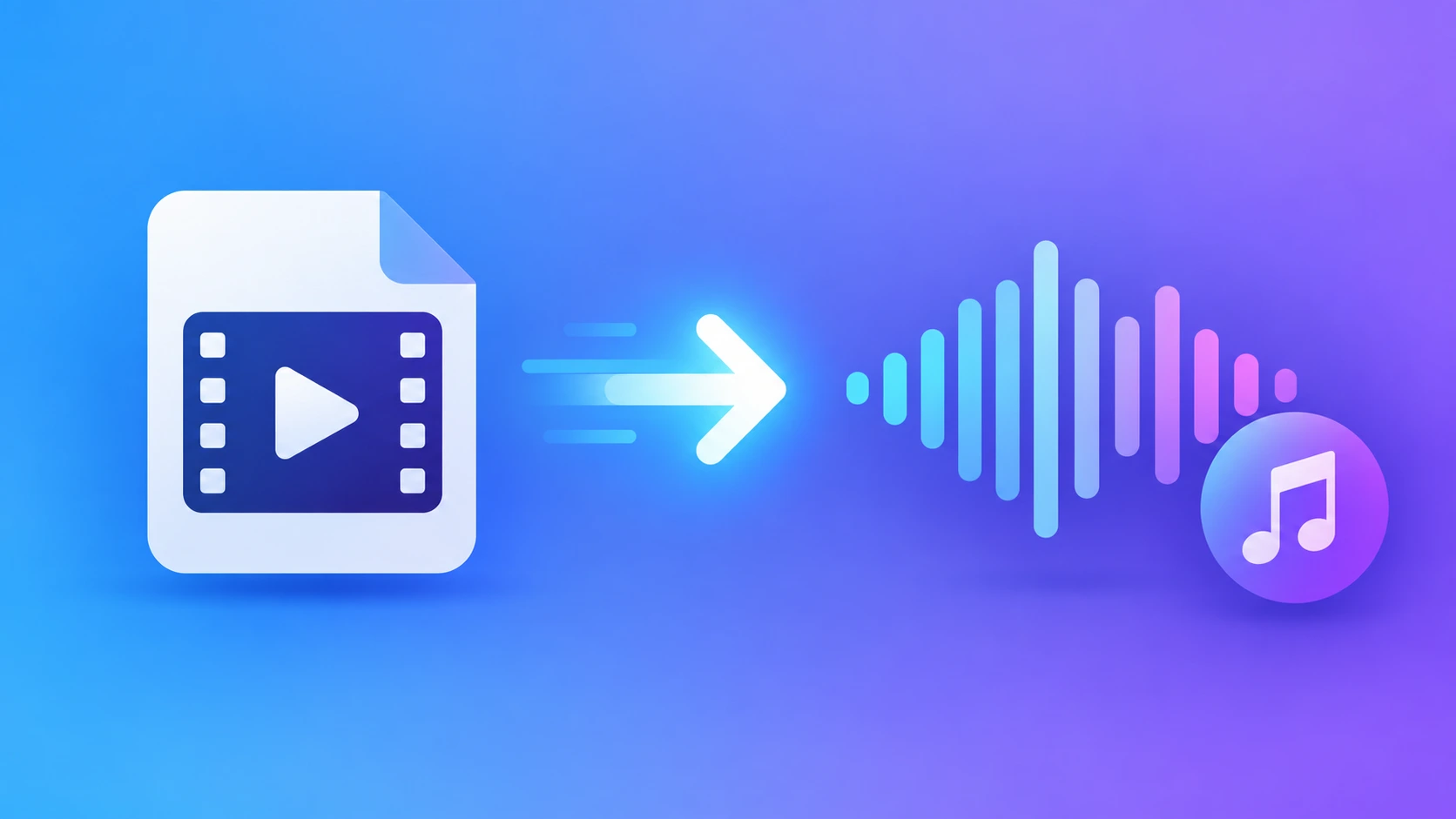
Why People Extract Audio From Video
There are more reasons than you'd think, and most of them have nothing to do with piracy.
A podcaster records an interview on Zoom and ends up with a 4 GB MP4 file when all they actually need is the conversation. A student records a two-hour lecture on their phone and wants to listen to it on the bus without burning through battery on video playback. A wedding videographer needs the vows as a clean audio track for editing. A musician records a practice session on video and wants the audio to run through mixing software.
In every one of these cases, the video part is dead weight. It takes up storage, drains battery, and can't be dropped into an audio editor without an extra conversion step. If you've ever wondered why your phone is always full, video files are usually the culprit — we broke that down in detail in how images and videos quietly eat up your phone storage.
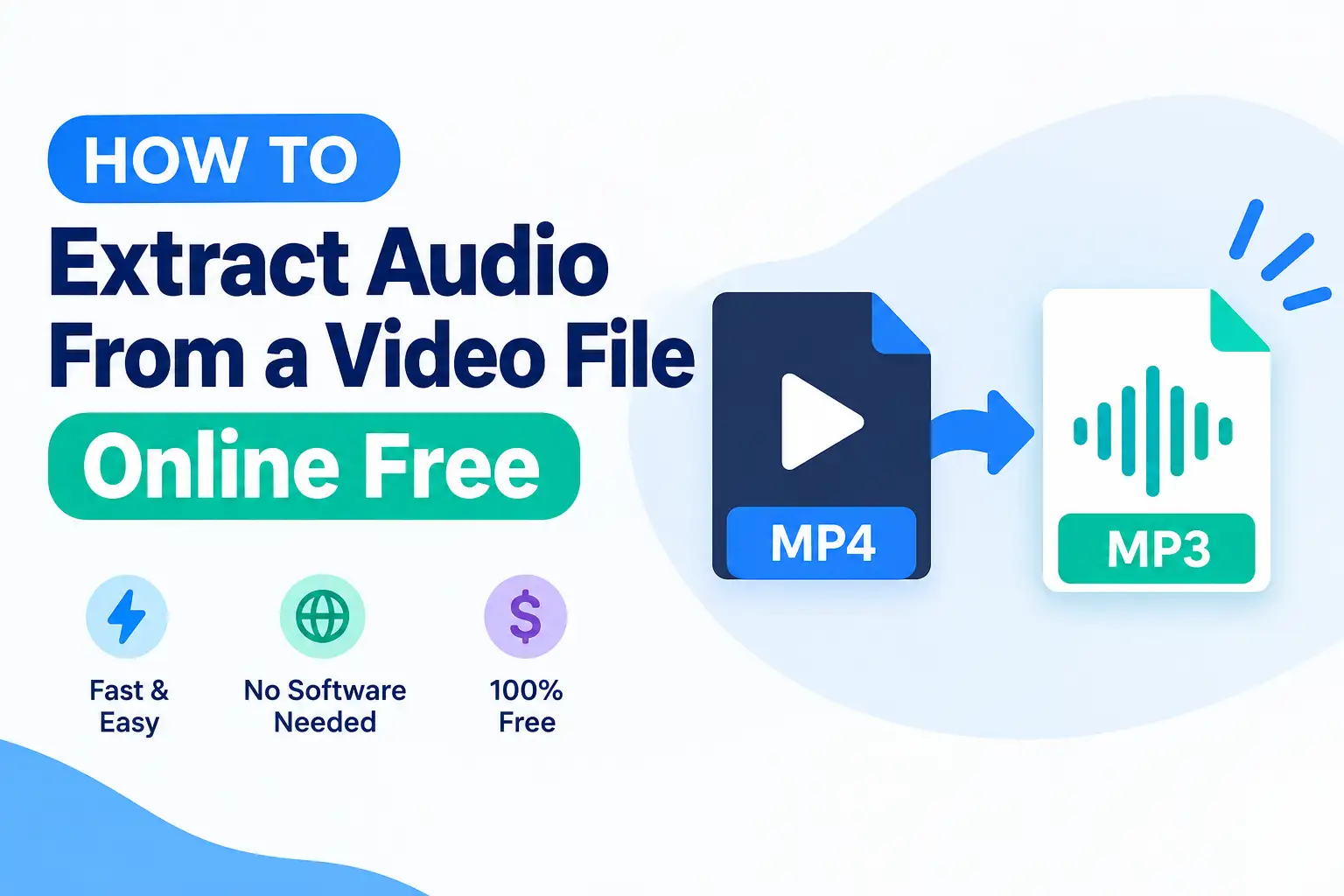
The good news is that you don't need Premiere Pro, Audacity, or any command-line tool to do this. A free video to MP3 converter handles the whole job in your browser in about a minute.
What Actually Happens When You Extract Audio
It helps to understand what a video file really is, because it changes how you think about the process.
An MP4, MKV, or MOV file is not a single stream of data. It's a container. Inside that container sit separate tracks: usually one video track, one or more audio tracks, and sometimes subtitle tracks. They're stored side by side and played back together in sync.
When you extract audio, you're doing one of two things:
Demuxing means the tool pulls the existing audio track out of the container and saves it as-is, without re-encoding. This is completely lossless — the audio you get is bit-for-bit identical to what was inside the video. The catch is that the output format has to match whatever codec was already there. Most MP4 videos store audio as AAC, so a demux gives you an M4A or AAC file.
Transcoding means the tool decodes the audio and re-encodes it into a different format, such as MP3 or WAV. You get the format you asked for, but because MP3 is lossy, a small amount of quality is discarded in the process.
For casual listening you'll never hear the difference. For archival or professional editing, it matters — and I'll cover exactly how to avoid unnecessary quality loss further down.
If container formats and codecs are new territory for you, our explainer on what an SVG file is covers the same kind of "what's actually inside this file" thinking for images.
Choosing the Right Audio Format
Picking the wrong output format is the single most common mistake people make. Here's a straightforward breakdown.
MP3 is the universal choice. Every device, car stereo, and app on earth plays MP3. Files are small. It's lossy, so some audio data is permanently discarded, but at higher bitrates most people can't tell. Use it for podcasts, lectures, music you'll listen to casually, and anything you plan to share.
M4A / AAC delivers better sound quality than MP3 at the same file size. If your source video is an MP4 from a phone or camera, the audio inside is almost certainly already AAC — so choosing M4A lets you extract without re-encoding, meaning zero quality loss. This is the smartest default for iPhone and Android recordings.
WAV is uncompressed. No quality loss at all, but the files are enormous — roughly 10 MB per minute of stereo audio. Use WAV only if you're taking the audio into editing or mastering software.
FLAC is compressed but lossless. You get WAV-level quality at roughly half the file size. Good for archiving, though not every device supports it.
OGG is a free, open format with good quality. Well supported on Linux and Android, less so on Apple devices.
A quick rule of thumb: if you're going to listen to it, choose MP3 or M4A. If you're going to edit it, choose WAV or FLAC.
How to Extract Audio From a Video Online (Step by Step)
The whole process takes less time than it took to read this far.
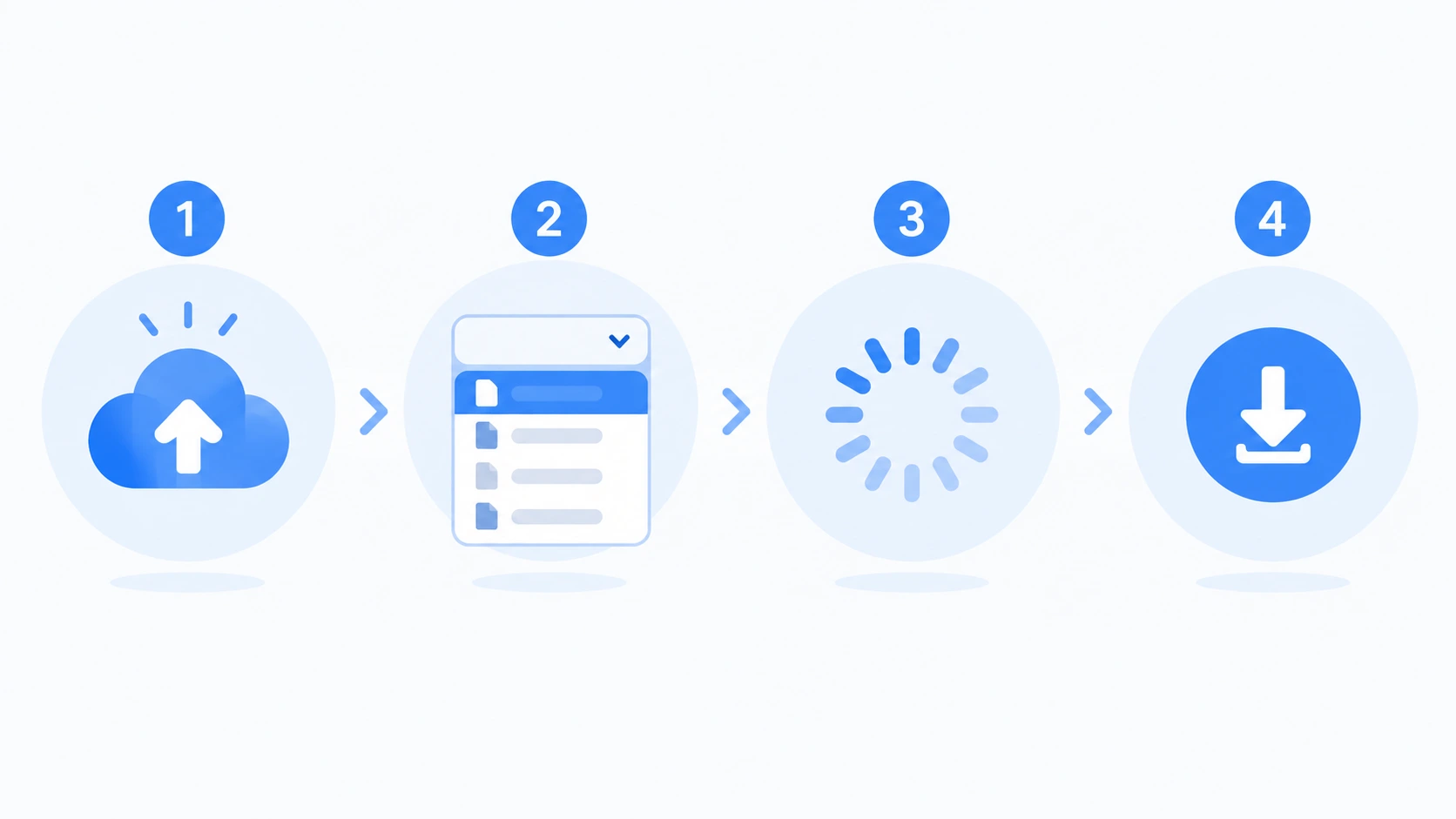
Step 1: Open the converter in your browser
Head to the video to MP3 converter. You don't need to install anything, create an account, or grant special permissions. Any modern browser on Windows, macOS, Linux, Android, or iOS will work.
Step 2: Upload your video file
Click the upload button, or drag your video straight onto the page. Most tools accept MP4, MOV, AVI, MKV, WMV, FLV, WEBM, and 3GP.
Upload time depends on your connection and file size. A 100 MB clip on decent broadband takes under a minute. A 2 GB file will take considerably longer — which is why it's often worth running it through a video compressor first if the file is huge.
Step 3: Choose your output format
Select MP3, WAV, M4A, FLAC, or whatever fits your use case from the section above. This is where you make the quality decision, so don't rush past it.
Step 4: Adjust the advanced settings
Set your bitrate, sample rate, and channels. If you skip this, the tool uses a sensible default — usually 128 kbps or 192 kbps MP3. If you want better quality, this is where you bump it up. The right numbers are explained in the next section.
Step 5: Convert
Hit convert and wait. Processing happens on the server, so you can leave the tab open and do something else. A few minutes of video typically converts in under 30 seconds.
Step 6: Download the audio file
Once it's done, a download link appears. Save the file to your device or push it to cloud storage. Files are deleted from the server automatically after a short window — see our privacy policy for specifics — so download it while it's there.
Extracting Audio on Phone vs Desktop
Online converters work identically on both, which is the main advantage over desktop software. There are a couple of practical differences worth knowing.
On desktop, you get faster uploads on Wi-Fi or Ethernet, easier handling of large files, and a proper file manager for organising the output. If you're converting anything over 500 MB, use a computer.
On mobile, the process is the same, but your browser may route the download into a folder that's awkward to find. On iPhone, Safari saves converted files to the Files app under Downloads. On Android, check the Downloads folder in your file manager or the browser's download list.
One mobile-specific tip: if your screen locks mid-upload, some browsers pause the transfer. Keep the screen awake for large files, or start the upload on a desktop instead.
Bitrate, Sample Rate, and Channels Explained
These three settings determine how good your extracted audio sounds.
Bitrate
How much data is used per second of audio, measured in kbps. Higher means better quality and larger files.
| Bitrate | Best for |
|---|---|
| 64–96 kbps | Spoken word only, noticeably compressed |
| 128 kbps | Lectures, meetings, basic podcasts |
| 192 kbps | The sweet spot for most music and general use |
| 256–320 kbps | Near-transparent quality, best for music you care about |
Here's the part people miss: you cannot create quality that wasn't in the source. If the audio inside your video was encoded at 128 kbps, exporting at 320 kbps MP3 doesn't improve anything — it just makes a bigger file containing the same information. Match or slightly exceed the source bitrate and stop there.
If you already have an MP3 that's larger than it needs to be, an MP3 compressor will shrink it without you having to redo the extraction.
Sample rate
How many times per second the audio was measured, in Hz. 44,100 Hz (44.1 kHz) is CD standard and a safe default. 48,000 Hz is standard for video, so if your source is video, 48 kHz often matches the original exactly. Leave this alone unless you have a specific reason to change it.
Channels
Mono or stereo. Stereo keeps left and right separate. Mono merges them into one, halving the file size. For a recorded lecture, interview, or voice memo, mono is perfectly fine and saves space. For music, always keep stereo.
Extracting Audio From Specific Video Formats
MP4 to MP3 is the most common request by far. MP4 files almost always contain AAC audio, so converting to MP3 involves re-encoding. Choose 192 kbps or higher to minimise quality loss.
MOV to MP3 applies to iPhone and Mac recordings. MOV is Apple's container, and the audio inside is usually AAC or sometimes uncompressed PCM. If it's PCM, extracting to WAV gives you a perfect copy.
MKV to MP3 deserves special attention because MKV files frequently contain multiple audio tracks — different languages, commentary tracks, and so on. Check whether your converter lets you pick which track to extract, otherwise you may end up with the wrong one.
WEBM to MP3 covers files from web sources. WEBM typically holds Opus or Vorbis audio, both of which need transcoding to reach MP3.
AVI to MP3 deals with older files. AVI often contains MP3 audio already, which means extraction can be effectively lossless if you pick MP3 as the output.
What to Do With the Audio After You Extract It
Extraction is rarely the end of the workflow. A few things people commonly do next:
Shrink it for sharing. A 45-minute lecture at 192 kbps stereo is around 60 MB — too big for some email attachments and messaging apps. Running it through an MP3 compressor drops it substantially with no meaningful loss for speech.
Keep the video too, but smaller. If you still need the visuals for reference but not at full quality, a video compressor lets you keep both files without filling your drive.
Bundle the transcript or notes. If you're transcribing the audio, a text to PDF converter turns your notes into a clean, shareable document that pairs with the audio file.
Build an episode artwork set. Publishing the audio as a podcast? You'll need cover art at the right dimensions for each platform — our guide to best image sizes for every social media platform covers exactly what those are, and the image compressor gets them under upload limits.
If you're regularly juggling this kind of work, our roundup of the top 10 free file converter tools in 2026 is worth bookmarking.
Common Problems and How to Fix Them
The upload keeps failing. Usually a file size limit. Check the tool's maximum and, if your video exceeds it, trim or compress the video first. An unstable connection is the other common cause — try switching from mobile data to Wi-Fi.
The extracted audio has no sound. The converter may have grabbed the wrong audio track, or the video genuinely has no audio stream. Play the original with the volume up to confirm audio exists, then look for a track selection option.
The audio sounds worse than the original. Your bitrate was set too low, or you converted an already-lossy file into another lossy format. Redo it at a higher bitrate, or extract to M4A or WAV to avoid re-encoding entirely.
The audio is out of sync or cuts off early. Some converters struggle with variable frame rate video, which phone cameras often produce. Convert the video to a standard MP4 first, then extract the audio from that.
The file downloads with no extension or won't play. Rename it manually and add the correct extension, for example .mp3. Windows sometimes hides extensions, which makes this confusing — enable "file name extensions" in File Explorer's View menu.
Processing takes forever. Large files and server load both contribute. A one-hour HD video is a lot of data to move. Be patient, or trim the video to just the portion you need.
Still stuck? Get in touch and we'll help you work out what's going wrong.
Is It Legal to Extract Audio From a Video?
The technical process is completely legal. What matters is what you do with the result, and whether you had the right to the source material in the first place.
You're on safe ground when the video is your own recording, when the content is in the public domain, when it's licensed under Creative Commons in a way that permits it, or when you have explicit permission from the copyright holder. Extracting audio from your own Zoom calls, phone videos, lecture recordings you were permitted to make, and footage you shot yourself is all fine.
You're on shaky ground when you rip audio from copyrighted films, music videos, television shows, or paid streaming platforms. Terms of service for most streaming services explicitly prohibit it, and copyright law in most countries does too, with limited fair-use or fair-dealing exceptions that vary by jurisdiction.
The short version: if you made it, or you were given permission, go ahead. If someone else made it and you're planning to redistribute it, don't. This isn't legal advice and rules differ by country, so check your local law if you're unsure — and see our terms and conditions and disclaimer for how that applies to using our tools.
Tips for Getting the Best Possible Audio
Start with the highest-quality source you have. If you have both a compressed version and the original recording, always use the original. Quality lost in earlier compression can never be recovered.
Extract to M4A when the source is an MP4. This usually avoids re-encoding entirely, giving you a perfect copy of the original audio track.
Trim before you convert, not after. If you only need three minutes out of a two-hour video, cutting it first means a faster upload, faster processing, and a smaller output file.
Use mono for speech. Lectures, interviews, voice notes, and podcasts recorded from a single microphone gain nothing from stereo. Mono halves your file size with no audible downside.
Don't convert the same file repeatedly. Every lossy-to-lossy conversion degrades the audio a little more. Go from the original source to your final format in one step.
Name your files properly. "Interview_Sarah_Chen_2026-03-14.mp3" will make sense in six months. "audio_converted_final(2).mp3" will not.
Check the output before deleting the source. Play the extracted file all the way through, or at least spot-check the beginning, middle, and end. Then archive the original.
Frequently Asked Questions
Do I need to install any software to extract audio from a video?
No. An online converter runs entirely in your browser. Nothing gets installed on your device, which also means nothing to uninstall later and no risk of bundled software.
Will extracting audio damage my original video?
No. The converter works on a copy. Your original file stays exactly as it was.
How long does it take?
For most files, under a minute. Upload time is usually the longest part, and that depends on your internet speed and file size more than anything else.
Is my file safe on the server?
Transfers are encrypted and uploaded files are deleted automatically after a short period — the details are in our privacy policy. For genuinely sensitive recordings such as confidential meetings or medical information, offline desktop software is the more cautious choice.
Can I extract audio from a YouTube link?
Technically many tools offer this, but YouTube's terms of service prohibit downloading content without permission. Stick to videos you own or that are explicitly licensed for reuse.
What's the best format for a podcast?
MP3 at 128 kbps mono for pure speech, or 192 kbps stereo if there's music. Both are widely supported by podcast platforms and keep file sizes reasonable for listeners.
Can I extract just one section of the audio?
Some converters include a trim tool that lets you set start and end times before converting. If yours doesn't, trim the video first, then extract.
Why is my extracted file so large?
You probably chose WAV or FLAC. Both are lossless and take up far more space. Switch to MP3 or M4A if size matters more than perfect fidelity, or run it through the MP3 compressor.
Does extracting audio use my phone's storage?
Only for the final downloaded file, which is much smaller than the video. If storage is your real problem, read how images and videos quietly eat up your phone storage.
Final Thoughts
Extracting audio from a video is one of those small technical tasks that sounds complicated and turns out to take under a minute. Upload the file, pick your format, adjust the bitrate if you care about quality, download the result.
The only decisions that really matter are which format and what bitrate. Get those two right and you'll end up with clean audio that sounds as good as the original. Choose M4A when your source is an MP4 and you want zero quality loss. Choose MP3 at 192 kbps or higher when you want something that plays everywhere. Choose WAV when the audio is heading into an editor.
Everything else is just clicking buttons — and you can start right now with the free video to MP3 converter.