Table of Contents
Introduction
.webp)
Whether you are an HR professional preparing employee badges, a school administrator printing student ID cards, or an event organizer managing attendee passes, printing multiple ID cards on a single A4 sheet is a skill that saves significant time, money, and resources.
The challenge most people run into is that ID cards are small — typically credit-card-sized — and printing each one on a separate sheet of paper is not only wasteful but also impractical. The solution is simple: arrange multiple ID cards on a single A4 page before printing.
In this comprehensive guide, you will learn every method available to print multiple ID cards on one page, with a special focus on the fastest and easiest free online tool: FreelyConvert. By the end of this article, you will know exactly how to produce professional-looking ID card sheets without needing any advanced software or design experience.
Why Print Multiple ID Cards on One Page?
Before diving into the how-to, it is worth understanding why this approach is so widely used across industries.
Save Paper and Printing Costs
A standard A4 sheet can hold anywhere from 4 to 10 ID cards depending on their size and layout. If you need to print 50 ID cards and use individual sheets, you will use 50 sheets of paper. But if you arrange them 8 per page, you only need 7 sheets. Over large batches, the savings in paper, ink, and time are substantial.
Achieve Professional Results
Commercial ID card printing services always arrange cards in a grid layout on larger sheets before cutting. Replicating this process yourself ensures your final cards look clean, aligned, and professionally produced rather than cropped and misaligned.
Simplify the Cutting Process
When multiple cards are printed on a single sheet with consistent margins and spacing, cutting them becomes straightforward. Whether you are using scissors, a paper trimmer, or a guillotine cutter, an organized layout makes the process fast and precise.
Reduce Printer Wear
Fewer print jobs mean less mechanical wear on your printer. Running 10 sheets through a printer takes far less toll on the machine than running 80 individual sheets.
What You Need Before You Start
.webp)
Before printing your ID cards, gather the following:
- Your ID card design file — This could be a JPEG, PNG, or PDF file of your finished ID card design. Make sure the resolution is at least 300 DPI for sharp print quality.
- A4 paper — Standard 80 gsm printer paper works well for practice runs. For final cards, consider 160–200 gsm cardstock for durability.
- A printer — A color inkjet or laser printer will both work. Laser printers tend to produce sharper text and lines.
- A cutting tool — A paper trimmer or guillotine cutter gives clean, straight edges. Scissors work in a pinch but are harder to keep straight.
- Access to an online tool or software — More on this below.
Common Methods to Print Multiple ID Cards on One Page
There are several ways to arrange multiple ID cards on one A4 page. Here is a clear breakdown of each method, from simplest to most complex.
Method 1: Using a Free Online Tool (Easiest)
The absolute easiest way to print multiple ID cards on one A4 sheet is to use a purpose-built online tool. You upload your ID card image, choose how many cards per page, and the tool automatically arranges them into a print-ready layout.
Best Tool: FreelyConvert Website: https://www.freelyconvert.com/print-multiple-id-cards-on-a4-sheet-online
No software installation, no design skills needed, and no cost. Just upload and print.
Method 2: Microsoft Word
Word's table and image tools can be used to manually place multiple copies of your ID card image in a grid on an A4 page. While this works, it requires precise manual sizing and can be time-consuming when dealing with margins and alignment.
Best for: Users already comfortable with Word who need occasional small batches.
Method 3: Adobe Acrobat
Adobe Acrobat's "Multiple pages per sheet" print setting allows you to print several card-sized PDFs onto one sheet. This is reliable but requires an Adobe subscription for full functionality.
Best for: Professionals who already use the Adobe Creative Suite.
Method 4: Canva
Canva allows you to create a custom A4-sized canvas and manually duplicate your ID card design across the page. It offers good visual control and design flexibility.
Best for: Users who designed their ID cards in Canva and want to stay within the same platform.
Step-by-Step: How to Use FreelyConvert to Print Multiple ID Cards on One A4 Sheet
.webp)
FreelyConvert offers a dedicated, free online tool that makes this entire process take less than two minutes. Here is how to use it.
Step 1: Open the Tool
Go to https://www.freelyconvert.com/print-multiple-id-cards-on-a4-sheet-online in any web browser on your computer or phone. No account or sign-up is required.
Step 2: Upload Your ID Card Image
.webp)
Click the upload button and select your ID card image from your device. The tool supports common image formats including JPG, PNG, and PDF. Make sure your image is the correct final design — including both front and back if applicable.
Step 3: Choose Your Layout
Select how many ID cards you want to fit on the A4 sheet. Common layout options include:
- 2 per page — Large cards with extra space
- 4 per page — Standard layout with comfortable margins
- 6 per page — Popular for standard CR80 credit-card-sized IDs
- 8 per page — Compact layout for smaller cards or large batches
The tool will automatically calculate spacing and margins to keep everything aligned.
Step 4: Adjust Settings (Optional)
Depending on the tool's options, you may be able to:
- Toggle between portrait and landscape orientation
- Adjust spacing between cards
- Set custom margins
For most standard ID card printing, the default settings work perfectly.
Step 5: Generate and Download the Print-Ready File
Click the generate or convert button. Within seconds, the tool creates a print-ready A4 PDF or image with all your ID cards neatly arranged. Download the file to your device.
Step 6: Print
Open the downloaded file and send it to your printer. Make sure your print settings are set to:
- Paper size: A4
- Scale: 100% (do not scale to fit or fill — this can distort card dimensions)
- Quality: High or Best
Step 7: Cut the Cards
.webp)
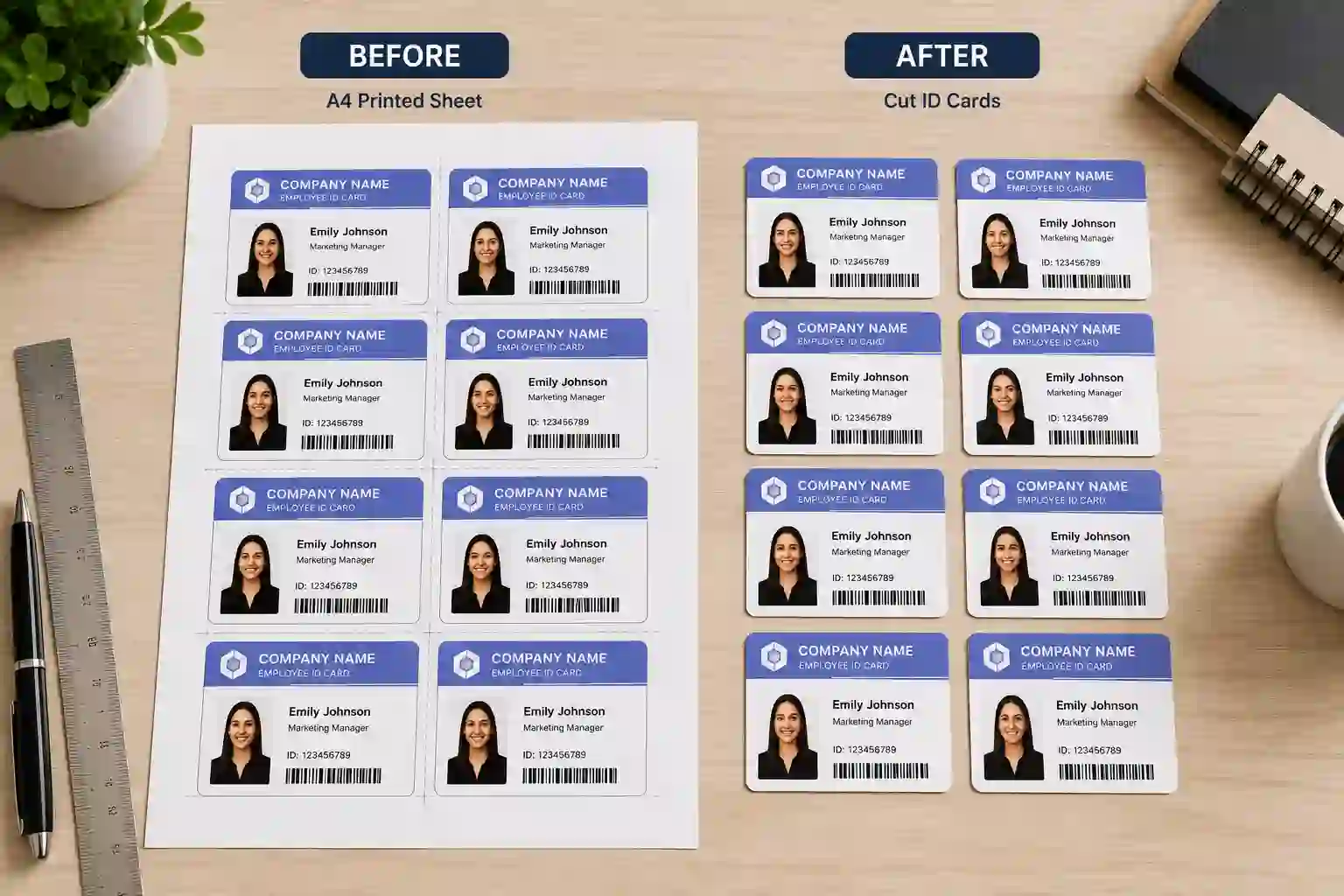
Once printed, use a paper trimmer or guillotine cutter to cut along the edges of each card. If your layout included crop marks or cutting guides, follow those lines for the most accurate cuts.
Tips for Best Print Quality
Getting good results requires attention to a few key details.
Use High-Resolution Images
Always start with an ID card image that is at least 300 DPI. Low-resolution images look sharp on screen but blurry when printed. If you designed your card in Canva, Word, or Photoshop, export it at the highest resolution available.
Print a Test Page First
Before printing your entire batch on cardstock, always do a test print on regular paper. Hold the test sheet up to an actual ID card to verify the size is correct before committing to expensive paper.
Match Paper to Purpose
For temporary event badges, standard printer paper is fine. For employee ID cards or student cards that need to last months or years, use 200 gsm+ cardstock or laminate the finished cards with a home laminator.
Allow Ink to Dry Before Cutting
With inkjet printers, let the sheet sit for at least 2–3 minutes after printing before handling or cutting. This prevents smearing, especially on glossy cardstock.
Calibrate Your Printer
If your printed cards consistently come out slightly off-center or the wrong size, run your printer's built-in calibration tool. This is especially important when working with professional cardstock.
Standard ID Card Sizes and A4 Layout Guide
.webp)
Understanding standard sizes helps you plan your layout effectively.
CR80 (Standard Credit Card Size)
- Dimensions: 85.6 mm × 54 mm
- Cards per A4 page: Up to 8 (2 columns × 4 rows)
- Most common size for employee badges, student IDs, and membership cards
CR79 (Slightly Smaller)
- Dimensions: 83.9 mm × 53.9 mm
- Cards per A4 page: Up to 8
- Used for cards that will be placed inside cardholders or lanyards
Custom Sizes Some organizations use slightly larger or taller ID cards. For non-standard sizes, tools like FreelyConvert allow you to input custom dimensions so the layout is still calculated correctly.
A4 Sheet Dimensions for Reference
- Width: 210 mm
- Height: 297 mm
When you account for standard printer margins (approximately 5–10 mm on each side), you have a printable area of roughly 190 mm × 277 mm — enough for a comfortable 2×4 grid of CR80 cards.
Frequently Asked Questions
Can I print ID cards at home? Yes. With a standard inkjet or laser color printer, A4 paper or cardstock, and a tool like FreelyConvert, you can produce professional ID cards at home without any specialized equipment.
What is the best paper for printing ID cards? For long-lasting cards, use 200–300 gsm matte or glossy photo paper, or laminate standard printouts. For temporary use, 80–120 gsm paper is sufficient.
How do I make sure the card size is exactly right? Always print at 100% scale and verify with a test print before your final run. Use a ruler to measure the printed cards against the standard CR80 dimensions (85.6 mm × 54 mm).
Is FreelyConvert free to use? Yes, FreelyConvert's ID card layout tool is completely free to use online with no account required.
Can I print double-sided ID cards at home? Yes, if your printer supports duplex (two-sided) printing. Print the front side first, reload the sheet carefully following your printer's duplex instructions, and print the back. Alignment may require a test run.
How many ID cards fit on an A4 page? For standard CR80-sized cards, you can fit up to 8 per A4 page. Larger cards will fit fewer; smaller cards may allow more.
Conclusion
Printing multiple ID cards on one page is one of those tasks that seems complicated until you know the right method — and then it becomes completely straightforward. Whether you are printing 10 cards or 1,000, organizing them efficiently on A4 sheets saves paper, cuts costs, and gives your finished cards a polished, professional look.
For the vast majority of users — from small business owners to school administrators — the fastest, easiest, and most reliable method is to use a free online tool built specifically for this purpose. FreelyConvert's ID card layout tool at https://www.freelyconvert.com/print-multiple-id-cards-on-a4-sheet-online removes all the complexity. Upload your design, pick your layout, download, and print. No software to install, no design experience required, and no cost.
Pair that with a quality cardstock and a paper trimmer, and you will have professional-grade ID cards ready in minutes.