1. Introduction
Have you ever uploaded a perfect photo to Instagram only to find it looks blurry or dull after posting? You are not alone. Millions of content creators, business owners, and social media managers face this problem every single day — and most of them do not realize the issue starts before they even hit the upload button.
The secret lies in choosing the right image format.
In 2026, social media platforms are more competitive than ever. Feeds are crowded, attention spans are short, and your visuals need to stand out instantly. A sharp, fast-loading, high-quality image gets more stops, more likes, and more shares than a compressed, blurry one.
This complete guide will walk you through everything you need to know about image formats for social media in 2026. We will compare JPG, PNG, WebP, and more, tell you exactly which format works best on each platform, and show you how to convert your images for free using FreelyConvert tools — no software, no signup, no cost.
Table of Contents
2. Why Does Image Format Matter on Social Media?
Most people think about content, captions, and hashtags when planning social media posts. Very few think about the image format — yet it is one of the most important technical decisions you can make for your visual content.
Here is what happens when you upload an image to any social media platform: the platform automatically compresses it. They do this to save server storage and help pages load faster for all users around the world. This compression is unavoidable. But how much damage it does to your image depends entirely on the format you started with.
If you upload a low-quality or incorrectly formatted image, the platform compression makes it significantly worse. Colors become dull, edges become blurry, and text becomes hard to read. On the other hand, if you upload the right format at the correct size, the compression causes minimal damage and your audience sees crisp, professional visuals.
.webp)
Here is a quick summary of why image format matters:
Image Sharpness: The wrong format causes blurry or pixelated results after the platform compresses your upload.
File Size and Speed: Large files take longer to upload and load. Slow loading images hurt your reach because platforms favor fast-loading content.
Transparency Support: If you have a logo or graphic with a transparent background, not all formats support this. Choosing the wrong format will fill your transparent area with a white or black background.
Color Accuracy: Some formats compress color data heavily. This can make your brand colors appear faded or inaccurate on screen.
Platform Compatibility: Not every image format is supported equally across all social media platforms. Using an unsupported format can cause upload errors or automatic conversion that damages quality.
Understanding these factors will help you make smarter decisions every time you create or upload content.
3. Overview of Common Image Formats
Before jumping into platform-specific recommendations, let us understand the most common image formats available in 2026 and what each one is designed for.
JPG (JPEG)
JPG is the most widely used image format in the world and has been the standard for photographs for decades. It uses lossy compression, which means it reduces file size by permanently removing some image data. The result is a smaller file that still looks good to the human eye, especially for photographs with lots of color variation.
The main downside of JPG is that every time you save the file, it loses a small amount of quality. Over multiple saves, this quality loss becomes visible.
Best for: Photographs, colorful images, product photos, lifestyle shots Not ideal for: Logos, graphics with sharp edges, images with text, transparent backgrounds
PNG
PNG stands for Portable Network Graphics and uses lossless compression. This means it reduces file size without throwing away any image data, so the quality stays exactly the same no matter how many times you save it. PNG also supports transparent backgrounds, making it the number one choice for logos, icons, and designed graphics.
The downside of PNG is larger file sizes compared to JPG, especially for detailed photographs.
Best for: Logos, graphics, screenshots, infographics, images with text overlays, transparent backgrounds Not ideal for: Large detailed photographs where file size is a concern
WebP
WebP is a modern image format developed by Google specifically for the web. It provides outstanding image quality at file sizes significantly smaller than both JPG and PNG. WebP supports both lossy and lossless compression, and it also handles transparent backgrounds just like PNG.
In 2026, WebP is supported by all major browsers and most social media platforms, making it an increasingly popular choice for creators who want the best of both worlds.
Best for: All types of images including photos, graphics, logos, and illustrations Not ideal for: Older software or niche platforms that have not yet adopted WebP support
GIF
GIF is one of the oldest image formats still in use today. It supports simple animation, which is why it became popular for memes and short reaction clips. However, GIF only supports 256 colors, which makes it completely unsuitable for photographs or high-quality visuals.
Best for: Short looping animations, memes, simple motion graphics Not ideal for: Photographs, high-quality branded visuals, detailed graphics
SVG
SVG is a vector-based format, meaning it is built from mathematical shapes rather than pixels. This allows SVG images to scale to any size without losing quality. SVG files are commonly used for logos and icons on websites. However, most social media platforms do not accept SVG uploads directly.
Best for: Logos and icons on websites, scalable design assets Not ideal for: Direct social media uploads
4. Best Image Format for Each Social Media Platform
.webp)
Now let us get specific. Here is the best image format for every major social media platform in 2026.
Instagram is built around visual content, which means image quality directly affects your engagement rate. The platform compresses every image you upload, so starting with the right format and the correct dimensions gives you the best possible outcome after compression.
Recommended Format: JPG for photographs and lifestyle content, PNG for graphics, quote cards, and story designs with text Recommended Dimensions: 1080 x 1080 px for square posts, 1080 x 1350 px for portrait posts, 1080 x 1920 px for stories and reels cover images
Pro Tip: Always upload at full 1080px width. If you upload a smaller image, Instagram scales it up and the quality suffers. You can resize your images for free using the Image Converter tool at image converter before uploading.
Facebook supports JPG, PNG, and WebP formats. For regular photo posts and albums, JPG is the standard choice. For profile pictures, cover photos, event banners, or any image that includes a logo or text overlay, PNG gives noticeably sharper results.
Recommended Format: JPG for photographs and personal posts, PNG for business graphics, logos, and banners Recommended Dimensions: 1200 x 630 px for shared link images, 820 x 312 px for cover photos, 170 x 170 px for profile pictures
Pro Tip: If your image has a white background with text, always use PNG. JPG compression can introduce a yellowish or gray tint on white backgrounds that makes your content look unprofessional.
Twitter / X
Twitter compresses images more aggressively than most other platforms. This makes your choice of format even more important. PNG consistently produces sharper results on Twitter, especially for graphics, infographics, and any image containing text. For pure photographs without text, JPG is acceptable.
Recommended Format: PNG for graphics, infographics, and text-heavy images, JPG for photographs Recommended Dimensions: 1600 x 900 px for landscape images, 1080 x 1080 px for square images
Pro Tip: Twitter crops images in the feed preview. Always check how your image looks in the cropped preview before posting. Keep important subjects and text in the center of the frame.
LinkedIn is a professional platform where your visual content reflects your brand and credibility. Poor image quality on LinkedIn can make your business look unprofessional. PNG is the preferred format for company logos, banners, and any graphic content. JPG works well for personal photos, team photos, and article cover images.
Recommended Format: PNG for company logos, banners, and graphics, JPG for personal and editorial photos Recommended Dimensions: 1200 x 627 px for shared article images, 1584 x 396 px for personal banner, 300 x 300 px for company logo
Pro Tip: LinkedIn profile photos uploaded as PNG files appear noticeably sharper than JPG versions. If your current profile photo looks slightly blurry, try re-uploading it as a PNG. You can convert it instantly at image converter.
TikTok
TikTok is primarily a short-form video platform, but images play a role in profile pictures and video thumbnail covers. JPG is the most commonly used and well-supported format for TikTok images.
Recommended Format: JPG for profile photos, PNG for any graphic overlays or branded thumbnails Recommended Dimensions: 200 x 200 px minimum for profile picture, 1080 x 1920 px for video covers
Pro Tip: Keep your profile picture simple and recognizable at small sizes since TikTok displays it very small in feeds and comment sections.
Pinterest is a visual discovery and inspiration platform where the quality of your images directly determines how many people save and click on your content. Both JPG and PNG are well supported. Use JPG for lifestyle and product photography, and PNG for infographics and designed pins.
Recommended Format: JPG for photographs and product shots, PNG for infographics, quote pins, and step-by-step guides Recommended Dimensions: 1000 x 1500 px is the ideal ratio (2:3 vertical format performs significantly better than square or horizontal)
Pro Tip: Vertical images take up more screen space on Pinterest and get significantly more saves and clicks than square or horizontal images. If you have a horizontal photo, consider cropping it to a vertical format before pinning. Use the crop tool at crop images in shapes to reshape your images easily.
YouTube
YouTube uses images primarily for video thumbnails and channel branding. Your thumbnail is the single most important factor in whether someone clicks your video. PNG is the best format for thumbnails because it preserves the sharpness of text, which almost every successful thumbnail includes.
Recommended Format: PNG for video thumbnails and channel art, JPG is acceptable but PNG is preferred Recommended Dimensions: 1280 x 720 px minimum for thumbnails (1920 x 1080 px recommended), 2560 x 1440 px for channel banner
Pro Tip: YouTube thumbnails are displayed at many different sizes from mobile to desktop to smart TV. Make sure your text is large enough to read at small sizes and use high-contrast colors so your thumbnail stands out in crowded search results.
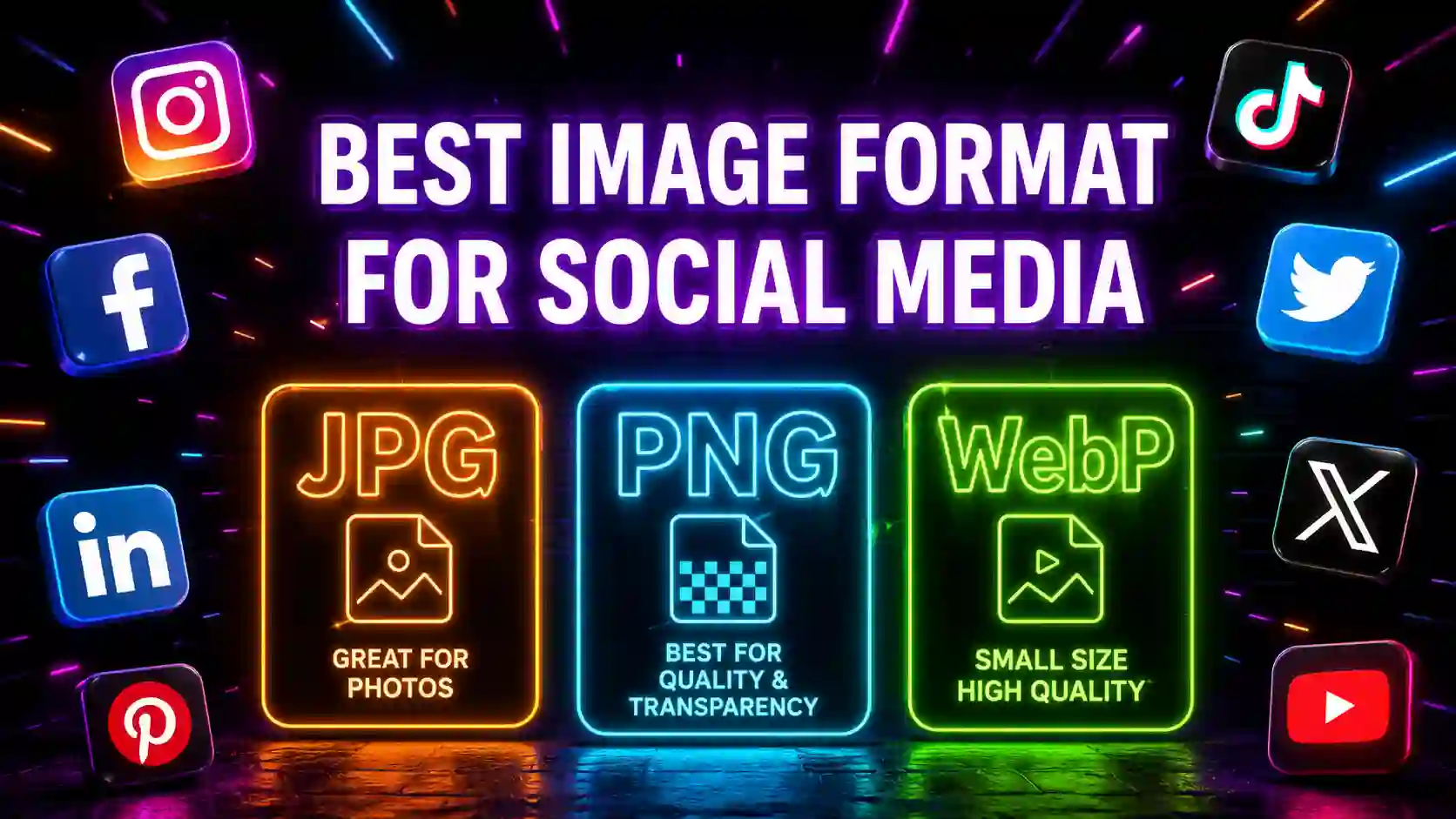
5. JPG vs PNG vs WebP Quick Comparison
.webp)
Here is a simple side-by-side breakdown to help you decide which format to use:
Feature | JPG | PNG | WebP File Size | Small | Large | Smallest Image Quality | Good | Excellent | Excellent Transparency Support | No | Yes | Yes Animation Support | No | No | Yes Best For | Photos | Graphics and Logos | Everything Platform Support | Universal | Universal | Most major platforms Compression Type | Lossy | Lossless | Both options available Color Depth | 16.7 million colors | 16.7 million colors | 16.7 million colors
The clear winner for 2026 is WebP when platform support is available. It delivers the best image quality at the smallest file size and supports both transparency and animation. However, JPG and PNG remain the safest and most universally supported choices across all platforms and tools.
A smart approach is to keep your master files as PNG for maximum quality, then convert to JPG or WebP depending on where you are uploading. You can handle all of these conversions for free.
6. Tips to Optimize Images Before Uploading
Choosing the right format is the first step. These five additional tips will make sure your images always look their best on every platform.
Tip 1: Resize Before Uploading
Always resize your image to match the platform's recommended dimensions before uploading. When you upload an oversized image, the platform scales it down and compresses it more aggressively. Uploading at exactly the right size gives the platform less work to do and preserves more of your original quality. Use the free Image Converter at https://www.freelyconvert.com/image-converter to resize any image in seconds.
Tip 2: Reduce File Size Without Losing Quality
Even after choosing the right format and dimensions, reducing your file size before upload puts you in control. When you compress the image yourself, you can choose the quality level. When the platform does it automatically, you have no control. Use the Image Size Reducer at https://www.freelyconvert.com/reduce-image-size-in-kb to compress your images to a specific KB target without visible quality loss.
Tip 3: Use the sRGB Color Profile
Always save and export your images using the sRGB color profile. This is the standard color space for screens and digital platforms. Other color profiles like CMYK (used for print design) can cause noticeable color shifts when uploaded to social media. Your brand colors may appear completely different from what you intended.
Tip 4: Edit Once Then Export
Each time you open and save a JPG file with edits, it undergoes another round of lossy compression. Over time this stacks up and degrades quality visibly. Get your edits right the first time, then export once in your target format. If you need to make further edits later, always work from the original high-resolution file.
Tip 5: Convert to the Right Format Before Uploading
If your image is currently in the wrong format for your intended platform, convert it first. For example, if you have a PNG photograph that is too large in file size, convert it to JPG. If you have a JPG logo that looks blurry on LinkedIn, convert it to PNG for sharper edges. You can do all of this instantly and for free at https://www.freelyconvert.com/image-converter without downloading any software.
7. How to Convert Image Formats Free with FreelyConvert
You do not need expensive software or design skills to get your images into the right format. FreelyConvert offers a full set of free online image tools that work directly in your browser. No downloads, no signup, no hidden fees.
Here is everything you can do with FreelyConvert image tools:
Convert Any Image Format Change your image between JPG, PNG, WebP, BMP, GIF, and dozens of other formats in seconds. Perfect for preparing images for any social media platform. Tool link: https://www.freelyconvert.com/image-converter
Reduce Image File Size Compress your images to a specific KB size before uploading. Keep quality high while making your files smaller and faster to load. Tool link: https://www.freelyconvert.com/reduce-image-size-in-kb
Convert PDF Pages to JPG Need to share a document or presentation slide on social media? Convert any PDF page into a high-quality JPG image instantly. Tool link: https://www.freelyconvert.com/pdf-to-jpg-converter
Combine Images into a PDF Merge multiple images into a single organized PDF file for easy sharing and downloading. Tool link: https://www.freelyconvert.com/images-to-pdf-converter
Create a Favicon ICO File Convert any image into an ICO favicon file for your website. Perfect for branding your site with a custom tab icon that matches your social media visuals. Tool link: https://www.freelyconvert.com/image-to-ico-converter
Pick Exact Colors from Any Image Use the Color Picker tool to extract the exact hex color code from any image. Great for maintaining consistent brand colors across all your social media graphics. Tool link: https://www.freelyconvert.com/image-color-picker
Crop Images into Custom Shapes Crop your photos into circles, squares, hearts, and other shapes. Perfect for creating unique profile pictures and styled graphics. Tool link: https://www.freelyconvert.com/crop-images-in-shapes
Merge Multiple Images into One Combine two or more images side by side or stacked into a single file. Ideal for before and after posts, product comparisons, and collage content. Tool link: https://www.freelyconvert.com/merge-images-online
All tools are completely free at https://www.freelyconvert.com with no registration required and no file limits on basic conversions.
8. Conclusion
Choosing the right image format for social media in 2026 is one of the simplest yet most impactful improvements you can make to your content strategy. It takes only a few extra seconds during your content creation process, but the difference in quality is immediately visible.
Here is a quick recap of everything covered in this guide:
Use JPG for photographs on Instagram, Facebook, TikTok, and most general photo content. It keeps file sizes manageable while maintaining good visual quality.
Use PNG for logos, graphics, infographics, thumbnails, and any image containing text. It preserves sharp edges and supports transparent backgrounds.
Use WebP when the platform supports it for the best combination of excellent quality and the smallest possible file size.
Always resize and compress your images before uploading to avoid aggressive platform compression damaging your visuals.
Use FreelyConvert at https://www.freelyconvert.com to convert, compress, resize, crop, and merge your images completely free without downloading any software.
Great content deserves great visuals. Start using the right image formats today and you will immediately notice a difference in how sharp and professional your social media presence looks.
9. FAQs
Q1. What is the best image format for Instagram in 2026?
JPG is the best format for photographs on Instagram. For graphics, quote cards, and story designs that include text or transparent elements, use PNG for noticeably sharper results. You can convert any image to JPG or PNG for free at https://www.freelyconvert.com/image-converter.
Q2. Is WebP better than JPG for social media?
Yes, WebP generally produces better image quality at smaller file sizes compared to JPG. In 2026, most major social media platforms support WebP. However, JPG remains the safest universal choice if you are unsure about compatibility.
Q3. Should I use PNG or JPG for Facebook posts?
Use JPG for regular photographs and personal posts on Facebook. Use PNG for business graphics, logos, cover photos, and any image that includes text overlays for sharper and more accurate results.
Q4. What image format does LinkedIn prefer?
LinkedIn performs best with PNG for profile pictures, company logos, and banners. JPG is suitable for personal photos and article cover images. For sharper LinkedIn visuals, convert your images at https://www.freelyconvert.com/image-converter.
Q5. How do I convert an image format for free online?
Visit https://www.freelyconvert.com/image-converter to convert between JPG, PNG, WebP, and many other formats completely free. No software download or account creation is required. Just upload your image, choose the output format, and download the result in seconds.
Q6. Does image format affect how many people see my posts?
Yes, indirectly. The wrong format leads to blurry or slow-loading images after platform compression. Poor visual quality reduces engagement (likes, shares, comments), and lower engagement signals to the platform algorithm to show your content to fewer people. Better image quality leads to better engagement which leads to better reach.
Q7. How do I reduce image file size before uploading to social media?
Use the free Image Size Reducer to compress any image to your target file size without visible quality loss. This gives you control over compression rather than leaving it entirely to the social media platform.