Ever tried to upload a photo to a job portal, email it to a friend, or attach it to a form, only to see the message "file size too large"? You are not alone. Modern smartphones capture stunning detail, but that detail comes at a cost: bigger files. So, how many MB is a photo from your phone, and why does the number vary so much between devices?
Table of Contents
In this guide, you will find a practical mobile camera photo size chart, an explanation of what controls file size, and simple ways to shrink your images when you need to. Whether you use a budget Android phone or a flagship iPhone, this article will help you understand exactly what to expect.
What Decides the Size of a Phone Photo?
There is no single answer to "how many MB is a photo," because several factors work together. Understanding them makes it easy to predict and control your file sizes.
1. Megapixels and Resolution
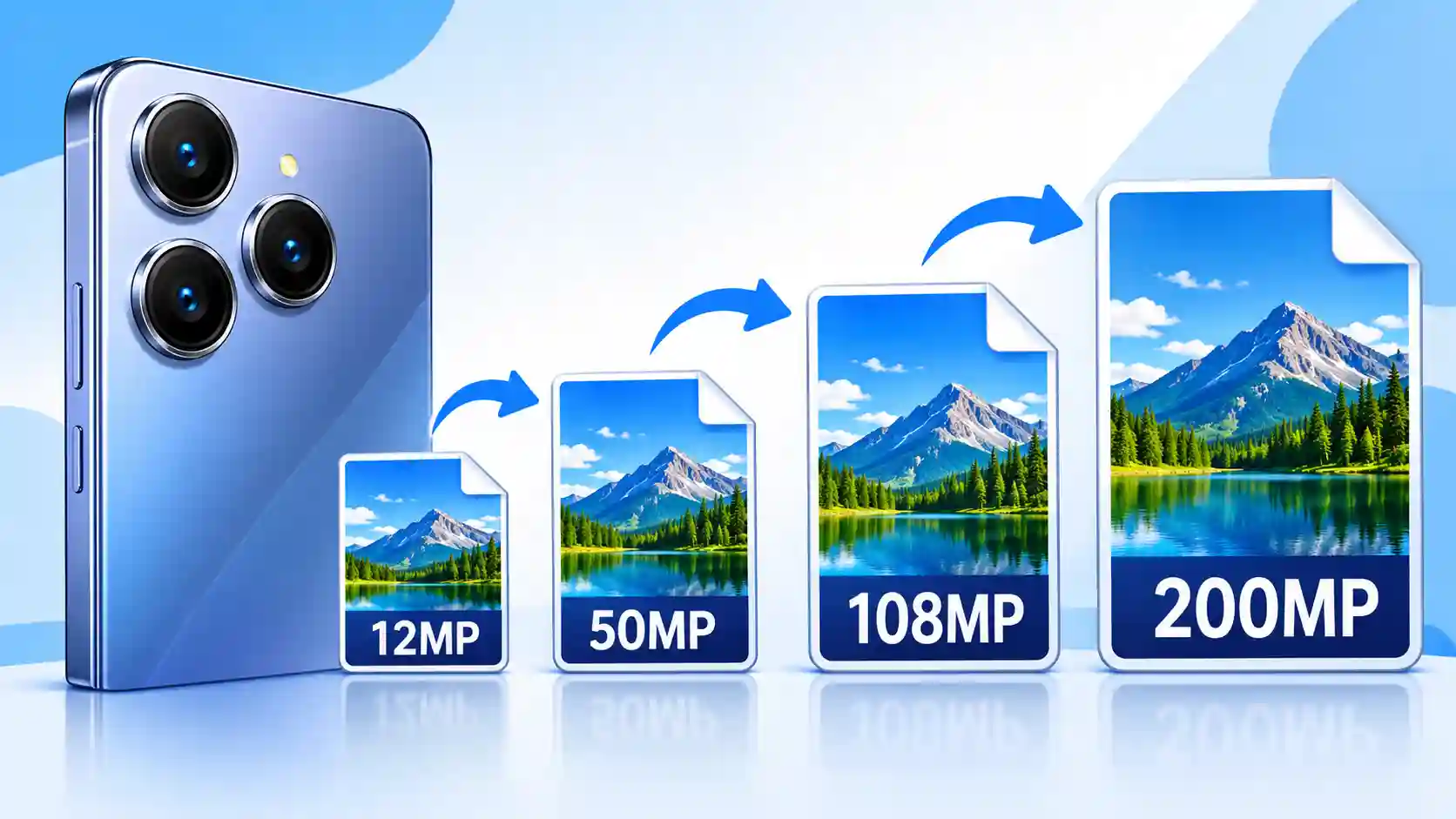
A megapixel (MP) is one million pixels. A 12MP camera records about 12 million pixels per image, usually at 4032 × 3024 pixels. A 200MP camera records sixteen times more data, at roughly 16000 × 12000 pixels. More pixels mean more information to store, which usually means a larger file.
2. Image Format
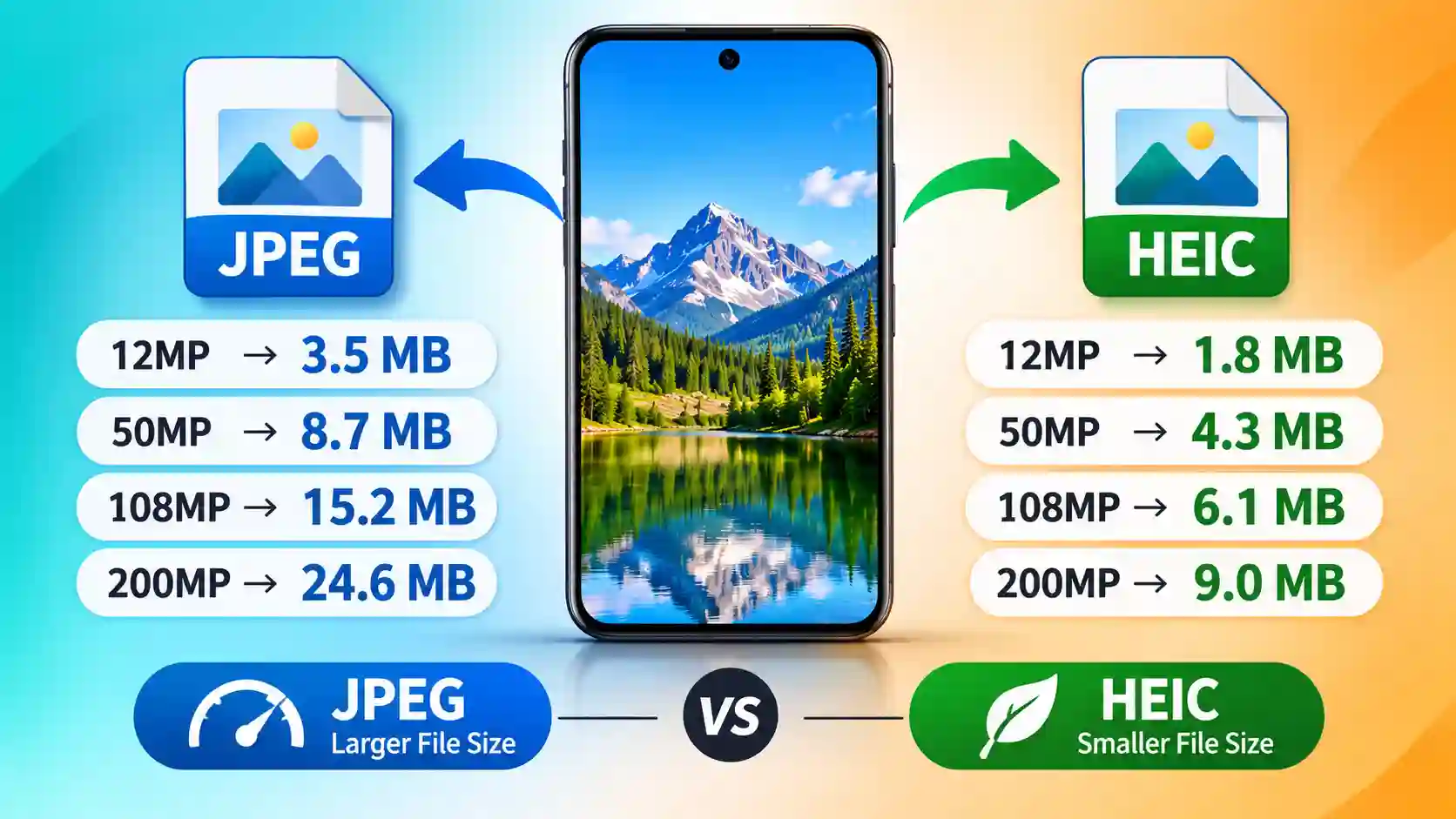
Most Android phones save photos as JPEG, while recent iPhones default to HEIC (also called HEIF). HEIC uses more modern compression and often produces files that are close to half the size of a JPEG with similar visual quality. RAW files, offered by many Pro modes, are far larger because they keep unprocessed sensor data.
3. Scene Detail and Lighting
A photo of a plain blue wall compresses very well. A photo of a busy street, tree leaves, or a night scene with noise contains far more detail, so it creates a larger file at the very same resolution. This is why two photos from the same phone can differ by several MB.
4. Camera Settings and Processing
HDR, night mode, portrait mode, and high-quality settings can all increase file size. Many phones also combine several frames into one image, which can affect the final result.
Mobile Camera Photo Size Chart (Average File Sizes)
The table below shows typical results for photos taken in standard conditions. Real numbers will vary depending on your scene and phone brand, so treat these as reliable estimates rather than exact values.
|
Camera Resolution |
Typical Pixel Dimensions |
Average JPEG Size |
Average HEIC Size |
Common On |
|---|---|---|---|---|
|
8MP |
3264 × 2448 |
1.5 – 3 MB |
0.8 – 1.5 MB |
Entry-level phones |
|
12MP |
4032 × 3024 |
2 – 5 MB |
1 – 2.5 MB |
Many mid-range and older flagship phones |
|
16MP |
4608 × 3456 |
3 – 6 MB |
1.5 – 3 MB |
Mid-range phones |
|
24MP |
5712 × 4284 |
4 – 8 MB |
2 – 4 MB |
Newer flagship default output |
|
48MP |
8000 × 6000 |
8 – 15 MB |
4 – 8 MB |
Premium and mid-range phones |
|
50MP |
8160 × 6120 |
8 – 18 MB |
4 – 9 MB |
Popular Android main cameras |
|
108MP |
12000 × 9000 |
15 – 30 MB |
8 – 15 MB |
High-end Android phones |
|
200MP |
16320 × 12240 |
25 – 50 MB |
12 – 25 MB |
Ultra-class flagship phones |
A useful rule of thumb: for a standard JPEG, expect roughly 0.2 to 0.4 MB per megapixel. HEIC typically brings that down to around 0.1 to 0.2 MB per megapixel.
Why High-Megapixel Phones Often Save Smaller Photos by Default
Here is something many people miss. A phone advertised with a 50MP, 108MP, or 200MP sensor does not always save full-resolution photos. Many devices use a technique called pixel binning, which combines several neighboring pixels into one larger pixel. This improves low-light performance and keeps files manageable.
For example, a 200MP sensor often outputs 12MP or 50MP photos by default and only produces the full 200MP image when you switch to a special high-resolution mode. So your real photo size depends on which mode you shoot in, not just the number printed on the box.
If you want to confirm what your device can really do, you can check the main camera sensor, resolution, and video capabilities in the detailed phone specifications on mobilelistify.com before you decide which camera mode to use.
JPEG vs HEIC: Which Format Is Better for File Size?
Choosing the right format is one of the easiest ways to control storage and upload size.
JPEG is the universal standard. Every website, email service, and device can open it. The downside is slightly less efficient compression.
HEIC saves space and preserves more quality at smaller sizes. However, some older software and many online forms do not accept it, so you may need to convert HEIC to JPG before uploading.
RAW (DNG) gives photographers the most editing freedom but creates huge files, often 25 MB to well over 70 MB on high-resolution sensors. It is not suitable for sharing directly.
If compatibility matters most, shoot in JPEG or the "Most Compatible" setting on iPhone. If storage matters most, HEIC is the smarter choice.
How Much Storage Do Your Photos Really Need?
A quick estimate helps when you are choosing a phone or deciding whether to back up your gallery.
- A 12MP JPEG at about 3 MB means roughly 330 photos per GB.
- A 50MP JPEG at about 12 MB means roughly 85 photos per GB.
- A 200MP JPEG at about 35 MB means roughly 28 photos per GB.
That means a 128 GB phone can fill up fast if you regularly shoot in a high-resolution mode, especially when you add 4K video. If you take many photos, consider a phone with more storage, or keep full-resolution mode for special shots only. When comparing devices, the storage options and camera specifications listed on Mobilelistify make it easy to match a phone to the way you shoot.
Common Upload Limits You Should Know
Many platforms set strict limits that are much smaller than a raw phone photo.
- Government and job application forms: often 50 KB to 500 KB.
- Email attachments: commonly limited to 20 to 25 MB total.
- Social media: platforms recompress images, but very large originals can still upload slowly.
- Website uploads (blogs, online stores): best kept under 200 to 500 KB for fast loading.
A 5 MB phone photo is roughly 10 to 100 times too large for many of these cases, which is why compression and resizing are such common tasks.
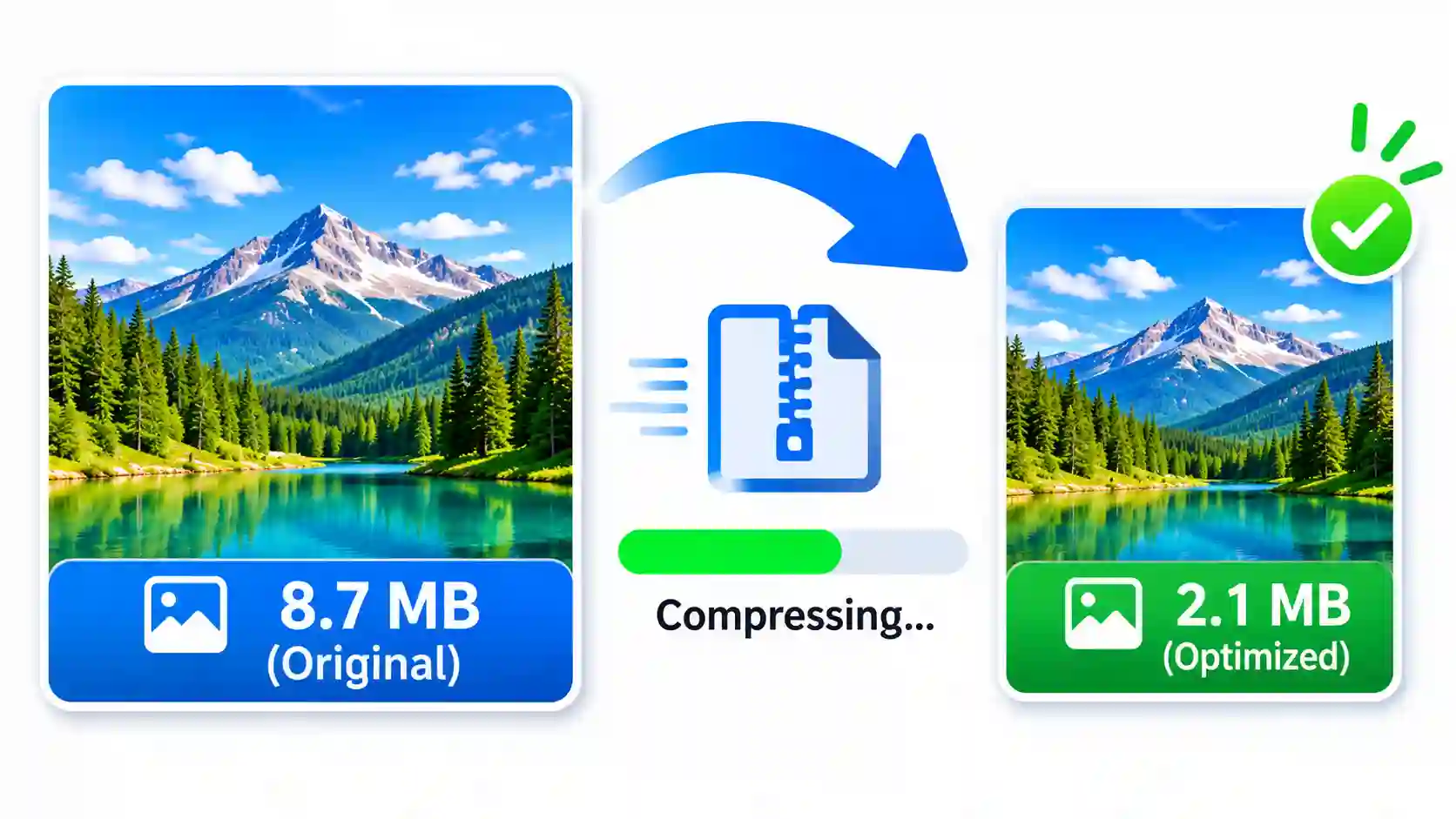
How to Reduce the Size of Your Mobile Photos
When a photo is too large, you have four reliable options. You can combine them for the best result.
1. Compress the Image
Compression removes unnecessary data while keeping the picture looking nearly identical. For most photos, you can cut the file size by 60 to 80 percent with no visible difference. An online image compressor lets you do this in seconds without installing an app.
2. Resize the Dimensions
If you only need the photo for a website, a profile picture, or a social post, you rarely need thousands of pixels across. Resizing a 4032 × 3024 photo to 1600 pixels wide dramatically lowers the file size and still looks sharp on screens.
3. Convert to a Better Format
Convert HEIC to JPG for compatibility, or convert PNG screenshots to JPG or WebP when you want smaller files. WebP in particular often produces much smaller images for websites.
4. Change Your Camera Settings
If you do not need maximum detail, shoot at 12MP or 24MP instead of the highest mode. Use HEIC for storage and switch to the high-resolution mode only for landscapes, prints, or heavy cropping.
Tips to Keep Photo Quality High While Saving Space
- Always keep the original in cloud storage or on a computer, and share a compressed copy.
- Avoid compressing the same image repeatedly, since quality drops each time.
- Aim for quality settings around 75 to 85 percent when compressing JPEGs.
- Resize first, then compress, for the best size-to-quality balance.
- Use the right dimensions for the destination instead of uploading the full image.
Which Phone Camera Is Right for You?
A higher megapixel count is not automatically better. Sensor size, lens quality, and image processing often matter more than raw resolution. A well-tuned 12MP or 50MP camera can outperform a poorly processed 108MP one in real life.
Before buying, compare actual camera hardware, resolution, and storage side by side. You can explore camera specs, sensor details, and full feature lists for the latest smartphones at mobilelistify.com, which helps you choose a device with the right balance of image quality and file size.
Final Thoughts
So, how many MB is a photo from your phone? For most people, the answer is between 2 and 8 MB for everyday shots, while high-resolution modes on 50MP, 108MP, and 200MP cameras can create files of 15 MB, 30 MB, or even more. Format, scene detail, and camera mode all play a part.
The good news is that you never have to be stuck with an oversized image. With a quick compression, resize, or format conversion, you can make any phone photo ready for email, forms, social media, or your website while keeping it sharp and clear.
Keep this chart handy, check your phone's camera capabilities, and choose the settings that match what you actually need.
Frequently Asked Questions
How many MB is a typical photo from a smartphone?
Most everyday photos are between 2 and 8 MB, depending on resolution, format, and scene detail.
How big is a 108MP photo?
A full-resolution 108MP JPEG usually measures 15 to 30 MB. HEIC versions are often smaller.
Is HEIC smaller than JPEG?
Yes. HEIC files are commonly about 40 to 50 percent smaller than JPEG files with similar quality.
How can I reduce a photo to under 200 KB?
Resize the image to a smaller width, such as 1000 to 1600 pixels, then apply compression. This usually brings it under 200 KB.
Does compressing a photo reduce its quality?
Good compression at moderate settings is almost invisible to the eye. Heavy compression or repeated compression can cause visible quality loss.