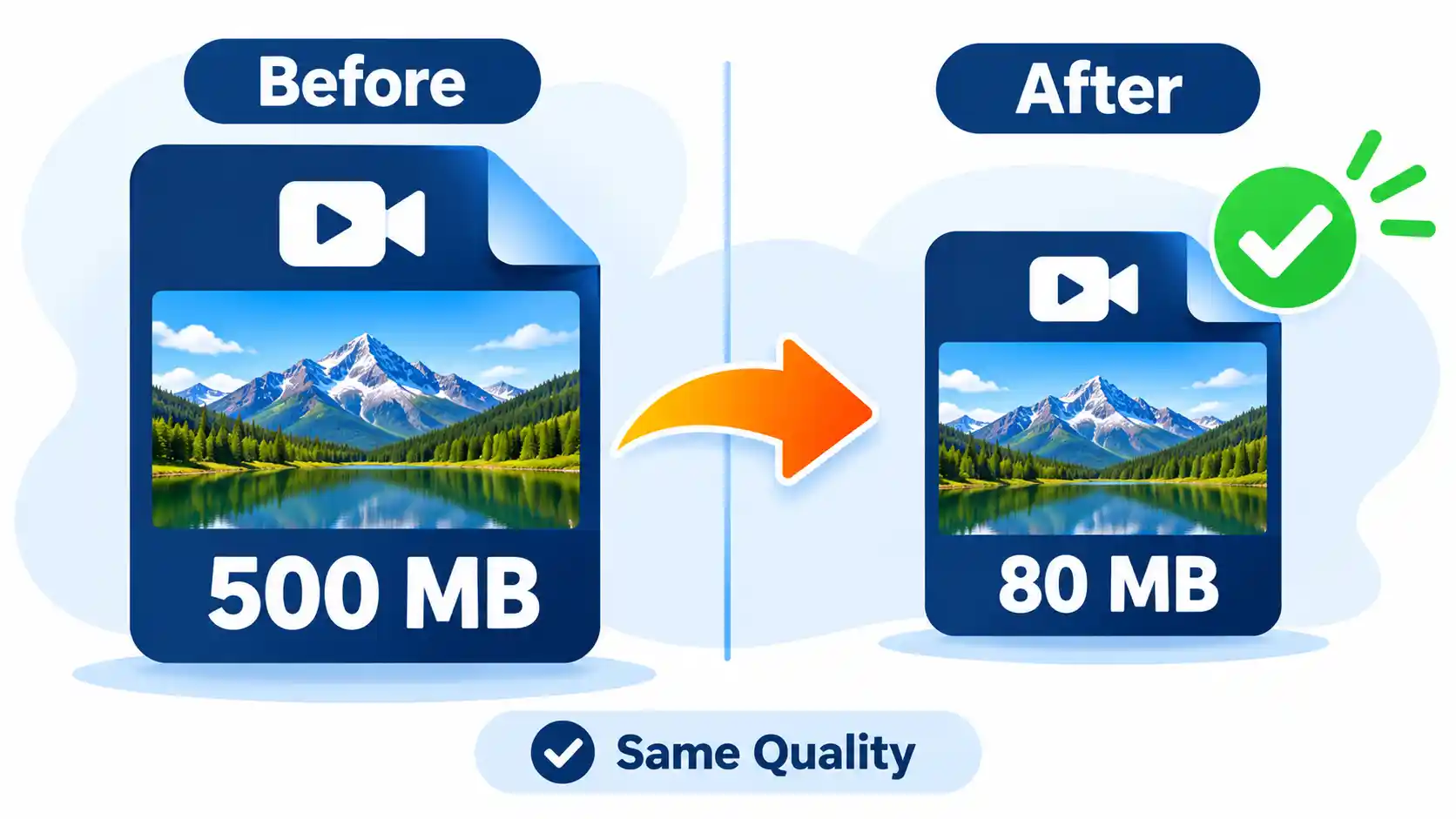
You record a great video, try to send it, and get the dreaded message: the file is too large. It might be a four-minute clip from your phone that weighs half a gigabyte, or a screen recording that refuses to fit in an email. The obvious fix is to compress it, but the obvious worry follows: will it look blurry afterwards?
The short answer: you can compress most videos by 50 to 90 percent with little or no visible difference, as long as you reduce the right things. The trick is understanding what actually makes a video file large and using settings that remove data your eyes will not miss.
Table of Contents
In this guide you will learn why videos are so big, what “without losing quality” really means, how to compress a video for free with our online tool, and which settings to choose for email, messaging apps and uploads.
Why Are Video Files So Large?
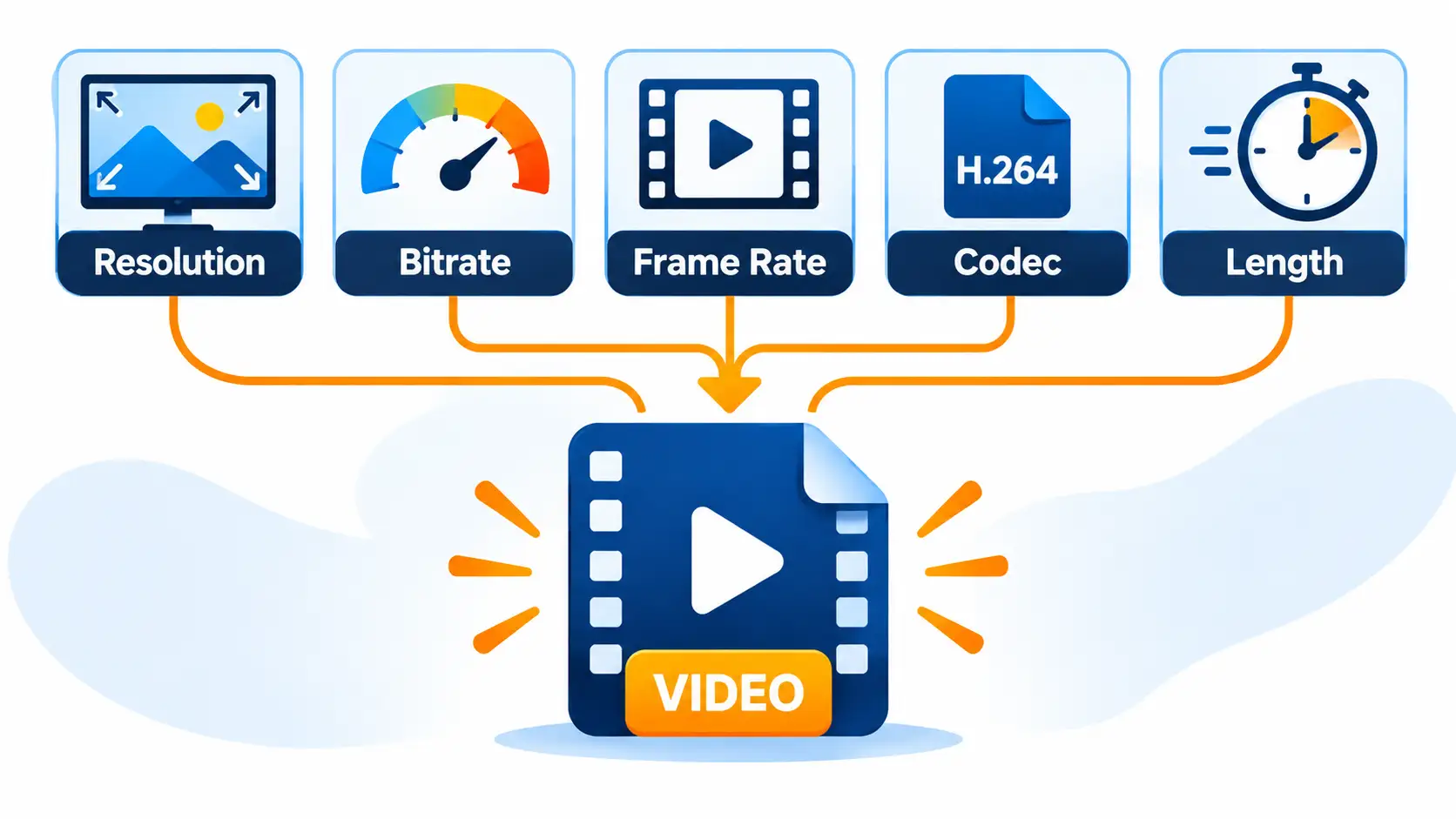
A video is a long series of pictures with sound attached. Five factors decide how heavy that series becomes:
- Resolution. A 4K video holds four times as many pixels per frame as a 1080p video, so it needs far more data.
- Bitrate. This is the amount of data used for each second of video. It is the single biggest driver of file size.
- Frame rate. A video recorded at 60 frames per second stores twice as many pictures as one at 30.
- Codec. The codec is the method used to pack the data. Newer codecs such as H.265 (HEVC) store the same picture in less space than older ones such as H.264.
- Length. More seconds means more data. It sounds obvious, but trimming even a few unneeded seconds helps.
Phones tend to record at very high bitrates so that footage looks great straight out of the camera. That is why a short phone clip can be surprisingly huge, and why it can usually be compressed so much without anyone noticing. If you are curious how much space your clips take, read our article on how images and videos quietly eat up your phone storage.
What Does “Without Losing Quality” Really Mean?
It is worth being honest about this. Almost every video compression is lossy, which means some data is permanently removed. Truly lossless compression exists, but it produces files far too large for everyday use.
What people actually want is visually lossless compression: the file becomes much smaller, and you cannot tell the difference when watching normally on a phone, laptop or TV. This works because the compressor throws away detail that the human eye barely notices, such as tiny color variations and fine texture in fast-moving scenes.
The goal, then, is not to avoid compression. It is to compress smartly and stop before the quality drop becomes visible.
Quick Math: How Big Will Your Video Be?
You can estimate a video’s size with a simple formula:
File size (MB) = bitrate (Mbps) × length (seconds) ÷ 8
Here is what that looks like for a 10-minute (600-second) video:
|
Bitrate |
Typical use |
Approximate file size |
|---|---|---|
|
20 Mbps |
High-quality phone or camera recording |
1,500 MB |
|
8 Mbps |
Good 1080p quality |
600 MB |
|
5 Mbps |
Good 720p quality |
375 MB |
|
3 Mbps |
Smaller 720p, fine for sharing |
225 MB |
|
1.5 Mbps |
Low quality, small files |
112 MB |
This table explains the whole idea of compression. Dropping a phone video from 20 Mbps to about 8 Mbps cuts its size by more than half, and on a normal screen most viewers will not see a difference. Audio adds a small extra amount on top of these numbers.
Step by Step: Compress a Video Free With FreelyConvert
The fastest way to shrink a video is with our free online video compressor. You do not need to install anything or learn video jargon.
- Open the tool. Go to the Video Compressor page in your browser, on a phone or a computer.
- Upload your video. Choose the file from your device or drag it onto the page.
- Pick a compression level. A medium setting is the best starting point because it balances size and sharpness. Choose a stronger setting only if you need a much smaller file.
- Start the compression. Wait while the tool processes the file. Longer videos take more time.
- Download and check the result. Play the compressed video before you delete the original. If it looks fine, you are done. If it looks soft, compress again from the original with a lighter setting.
Tip: always compress from the original file, not from a video you already compressed. Compressing a compressed video repeatedly stacks up quality loss.
Best Settings by Use Case
Different destinations need different sizes. Use these as a starting point:
|
Where you are sending it |
Suggested resolution |
Suggested bitrate |
Goal |
|---|---|---|---|
|
Email attachment |
720p |
2 to 3 Mbps |
Stay under the attachment limit (many email services cap attachments around 25 MB) |
|
Messaging apps |
720p |
2 to 4 Mbps |
Fast sending and smaller data use |
|
Social media posts |
1080p |
5 to 8 Mbps |
Sharp look on phone screens |
|
Website or blog embed |
720p to 1080p |
3 to 5 Mbps |
Quick page loading |
|
Archiving on your computer |
Keep original resolution |
8 Mbps or higher |
Preserve detail |
For social media, platforms usually re-compress whatever you upload, so there is no benefit in uploading a gigantic file. To plan your sizes, see our guide to the best image sizes for every social media platform.
7 Ways to Reduce Video Size Without Hurting Quality
1. Lower the bitrate. This is the most effective method. Most phone videos carry far more data than a screen can show.
2. Reduce the resolution when it makes sense. If the video will be watched on a phone or in an email, 720p is often enough. Do not shrink a video you plan to show on a large TV.
3. Use an efficient codec. H.265 stores the same quality in less space than H.264, but not every older device plays it. H.264 is the safest choice for sharing.
4. Trim the video. Cut the start and end, dead pauses and anything you do not need. Fewer seconds means fewer megabytes.
5. Lower the frame rate when motion is simple. A talking-head video or a screen recording rarely needs 60 frames per second. 30 is plenty.
6. Remove audio you do not need. For silent clips such as demos, dropping the soundtrack saves a little extra.
7. Export to MP4. MP4 is the most widely supported format and works well with common codecs, so it is a safe target for almost every situation.
Common Mistakes to Avoid
- Compressing too hard. Over-compression causes blocky patches, blurry faces and color banding. If you see them, use a lighter setting.
- Compressing the same file again and again. Each pass removes more data. Always start from the original.
- Choosing the wrong resolution for the screen. A 4K upload to be watched on a phone wastes space.
- Deleting the original too early. Keep it until you have checked the compressed copy.
- Ignoring file length. A long video at a decent bitrate will still be large. Trim it first.
How to Compress a Video on iPhone or Android
You do not need a computer. Open our video compressor in your phone’s browser, choose the video from your gallery, compress it and save the result back to your phone. For clips you record often, consider lowering your camera’s recording resolution or frame rate in the camera settings, so future videos start smaller.
Need Only the Audio? Skip the Video Altogether
If you only want the sound, such as a lecture, interview or song, you do not need to keep the whole video. Convert it to audio with our video to MP3 converter, and follow our guide on how to extract audio from a video file online for free. If the resulting audio file is still large, our MP3 compressor can shrink it further.
Looking for more helpful tools? See our list of the top free file converter tools in 2026.
Frequently Asked Questions
Can I compress a video without losing any quality?
Not completely. Almost all compression removes some data. However, with sensible settings the loss is usually invisible, which is called visually lossless compression.
How can I reduce the size of a video for email?
Lower the resolution to 720p, use a bitrate of about 2 to 3 Mbps and trim unneeded parts. Many email services limit attachments to around 25 MB, so shorter clips work best.
What is the best format for compressed video?
MP4 is the best all-round choice because almost every phone, computer and website supports it.
Does compressing a video reduce its resolution?
Not necessarily. Compression can lower only the bitrate while the resolution stays the same. Some tools also let you reduce resolution to save even more space.
Why is my phone video so big?
Phones record at high resolution and high bitrate to capture as much detail as possible. A minute of 4K video can take hundreds of megabytes.
Is it safe to compress the same video twice?
It is better not to. Each compression discards more data. Always compress from the original file.
What is better for small size, H.264 or H.265?
H.265 makes smaller files at similar quality, but H.264 is more compatible with older devices and software.
Is the online video compressor free?
Yes. You can use the FreelyConvert video compressor for free from any browser.
Final Thoughts
Compressing a video does not have to mean ruining it. Remember the main ideas: bitrate is the biggest factor in file size, 720p is enough for many sharing situations, and you should always compress from the original and check the result before deleting anything.
Ready to shrink your file? Open the free FreelyConvert video compressor, upload your video and download a smaller version in minutes.